

All docs
YOOtheme
A page built in the YOOtheme Pro builder often holds what structured data describes best. An accordion of questions and answers, a gallery, a video, an event with a date and a venue. To a search engine or an AI assistant they are only layout, unless something says what they are.
YOOtheme is the extension of AI Boost that says it. It reads the blocks you mark in the builder, and every accordion whose every title is a question, off the rendered page. Each one becomes JSON-LD beside the structured data AI Boost already writes, and the accordion needs no mark. YOOtheme is built into AI Boost and included in every plan. It does nothing until you switch it on.
Before you switch it on
- An activated site. YOOtheme can be switched on only on a site that has been activated, as Getting started explains.
- YOOtheme Pro rendering the page. AI Boost reads a page only when its markup shows that YOOtheme Pro rendered it. A page another template renders gets nothing from the extension, so a change of template leaves nothing behind.
Switch it on
Extensions is the third entry under Overview in AI Boost's sidebar. Switch on the card named YOOtheme. The badge turns to On, and an Options link appears on the card. On a site that is not activated yet, the switch cannot be moved, and the card carries a note that sends you to activate the site.
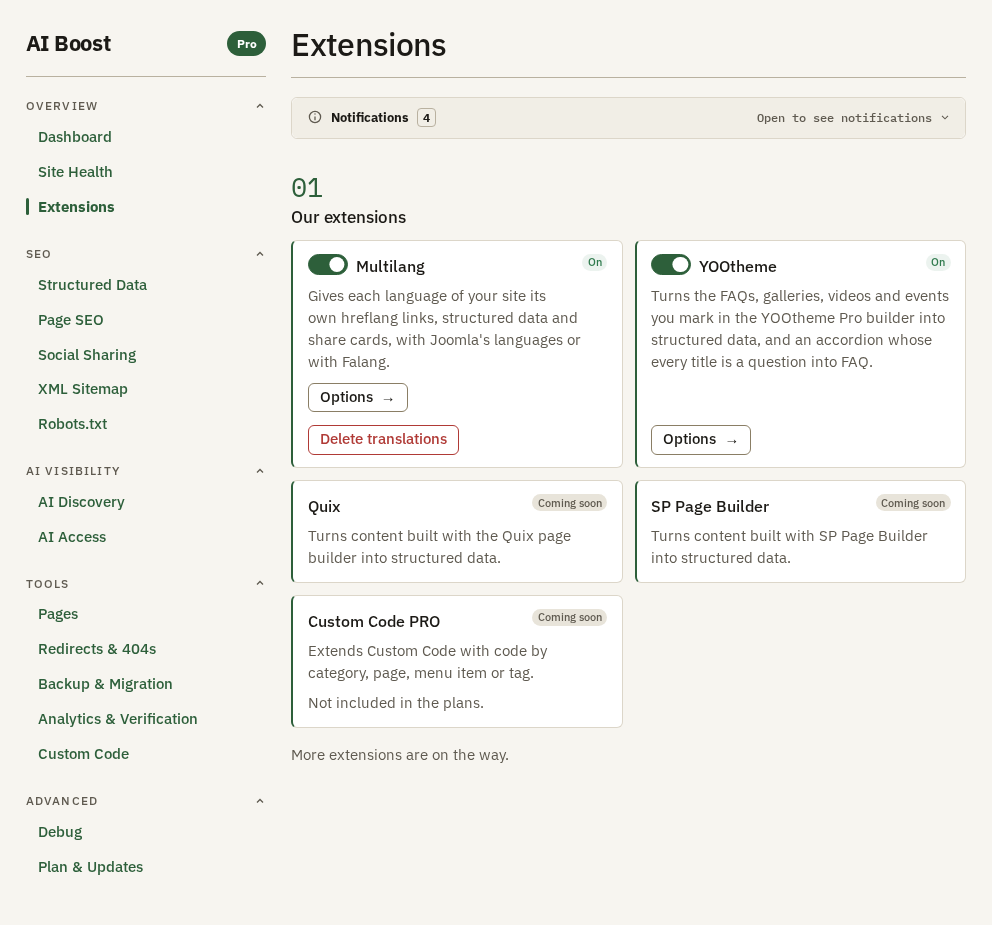
Switched off, the extension is never loaded. AI Boost then reads nothing from the builder, and your options stay as you set them.
Its options
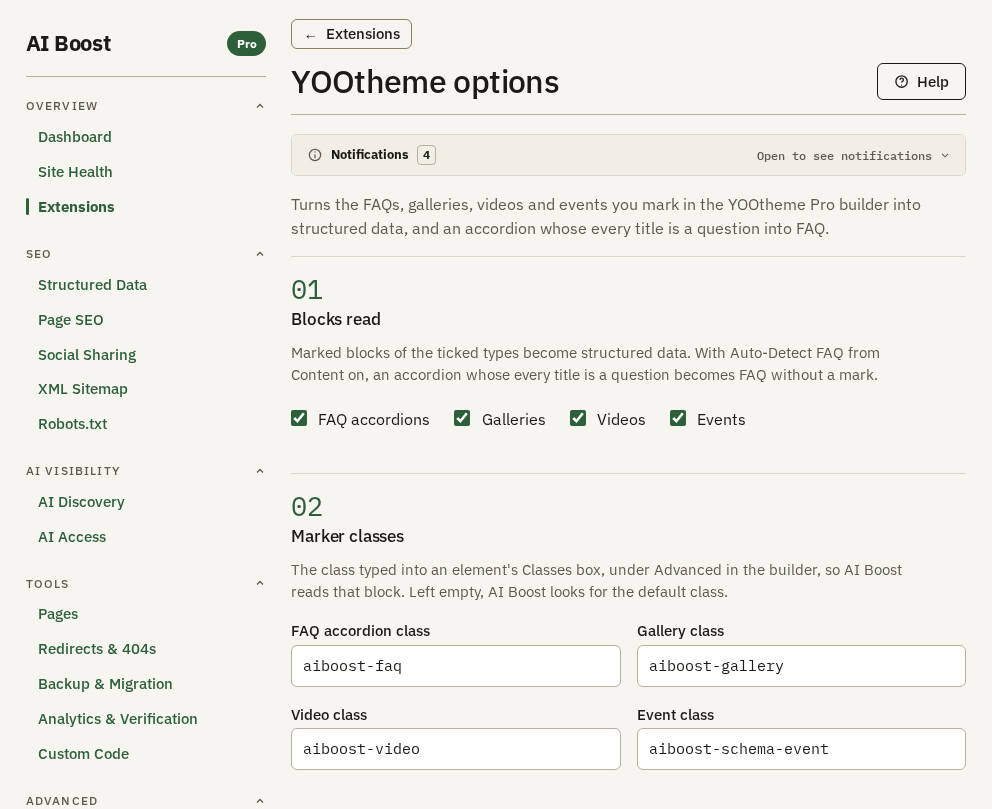
Options opens a page of its own, YOOtheme options, with five numbered sections. While YOOtheme is switched off, the page says "These options apply once YOOtheme is switched on in Extensions." and its fields cannot be changed. Help, at the top of the page, opens the short version of this page inside AI Boost, with every class listed.
Blocks read
FAQ accordions, Galleries, Videos and Events are all ticked when you install. AI Boost reads a ticked type wherever a block carries its class. An unticked type is skipped, even on a marked block. Unticking FAQ accordions does not touch the accordions of questions further down this page, because those follow Auto-Detect FAQ from Content.
Marker classes
FAQ accordion class, Gallery class, Video class and Event class hold the class AI Boost looks for on each kind of block. They start as aiboost-faq, aiboost-gallery, aiboost-video and aiboost-schema-event. Change one only if your site already uses another class for those blocks. A box left empty falls back to its default. AI Boost also reads the older jb--faq and jb--video classes, whatever these boxes hold.
Smallest gallery
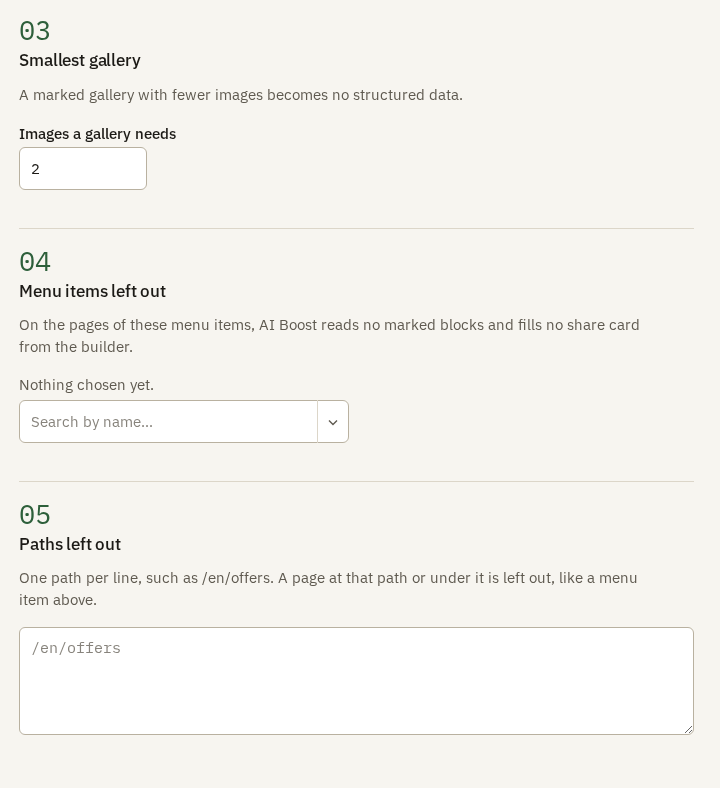
Images a gallery needs is 2 when you install. A marked gallery with fewer images becomes no structured data. The lowest number AI Boost takes is 1.
Menu items left out
On the pages of the menu items you pick here, AI Boost reads no marked block and fills no share card from the builder. Use it for a page whose marked blocks should not be published.
Paths left out
One path per line, such as /en/offers. A page at that path or under it, such as /en/offers/summer, is left out the same way as a menu item above. Capital letters make no difference. A line holding only / is ignored, so to leave out the home page, pick its menu item instead.
Neither list switches off the accordions of questions. They govern marked blocks and the share card only.
Mark a block
In the builder, open the element, go to Advanced, and type the class into Classes, after any class already there. For an FAQ, a video or an event, the Attributes box under Advanced can mark the block instead, with data-aiboost-schema=faq, data-aiboost-schema=video or data-aiboost-schema=event. A gallery is marked by its class only.
| Class | Goes on | AI Boost publishes |
|---|---|---|
aiboost-faq | An Accordion element, or the row or section that holds it | One FAQPage, each item's title a question and its content the answer |
aiboost-gallery | A Gallery, Grid or any block that holds the images | One ImageGallery with an ImageObject for each image |
aiboost-video | The row or column that holds the Video element and the texts about it | One VideoObject for each video in it |
aiboost-schema-event | The section, row or column that holds the event | One Event |
An FAQ accordion
Every item of the marked accordion becomes a question, its title, and an answer, its content. A page publishes 20 questions at most, and a question it finds twice only once. Questions from a marked accordion, from an accordion of questions and from Auto-Detect FAQ from Content all go into one FAQPage per page.
Google no longer shows FAQPage as a rich result. The markup still hands your questions and answers to search engines and AI assistants in a form they can read, which is no promise that they show or cite them.
A gallery
Each image in the marked block becomes an ImageObject with its address. An image's title in the gallery item becomes its name, and its caption, from the item's content or its lightbox caption, becomes its caption. An image that appears twice is listed once. With fewer images than Images a gallery needs, the block publishes nothing.
A video
Put the Video class on the row or column that holds the Video element, then a field class on each text about the video, in the same Classes box. AI Boost reads a YouTube or Vimeo video and a video file uploaded to the site.
- Required.
aiboost-field-nameon the video's title andaiboost-field-uploaddateon the date it was published. The video also needs a thumbnail. AI Boost takes an image markedaiboost-field-thumbnail, then the video's own poster image, then, for YouTube, the thumbnail YouTube makes. So a Vimeo video needs one marked. - Optional.
aiboost-field-descriptionon a text that says what the video shows.
For example, a column with aiboost-video holds the Video element, a Headline with aiboost-field-name reading Our workshop, and a Text with aiboost-field-uploaddate reading 14 March 2026. A video that misses a required field is not published.
An event
Put the Event class on the section, row or column that holds the event. Then put a field class on each element inside it that shows one part of the event.
| Field class | What it marks |
|---|---|
aiboost-field-name | The event's title. Required |
aiboost-field-startdate | Its start date. Required |
aiboost-field-location | The venue's name |
aiboost-field-street or aiboost-field-address, aiboost-field-city or aiboost-field-locality, aiboost-field-region, aiboost-field-zip or aiboost-field-postalcode, aiboost-field-country | The address, one part on each element. Each pair is two names for the same part |
aiboost-field-mode | Online, in person or hybrid |
aiboost-field-onlineurl | The link to join an online event |
aiboost-field-status | Scheduled, cancelled, postponed, rescheduled or moved online |
aiboost-field-enddate | Its end date |
aiboost-field-previousstartdate | The date a moved event first had |
aiboost-field-description | What happens |
aiboost-field-image | An image of it |
aiboost-field-url | The event's own page. Without it, the page the event is on |
aiboost-field-organizer, aiboost-field-organizerurl | Who runs it, and their page |
aiboost-field-performer | Who appears |
The event also needs a place. A venue's name or any part of an address gives one, and so does a mode reading online, which points at the join link or, without one, the event's page. An event without a name, a start date it can read or a place is not published.
An event with no status is published as scheduled. A status word AI Boost does not know is left off.
For example, a section with aiboost-schema-event holds a Headline with aiboost-field-name reading Autumn Open Day, a Text with aiboost-field-startdate reading 20 November 2026, and a Text with aiboost-field-location reading City Hall.
Dates, and values the page does not show
AI Boost reads 2026-11-20, 20.11.2026, 20 November 2026 and November 20, 2026, with the month in English, German or Serbian, and publishes 2026-11-20. A date typed with its time, such as 2026-11-20T18:00+01:00, is published as typed. A time written in words is dropped and the date kept. A date such as 03/04/2026, where either number could be the month, cannot be read. A start date AI Boost cannot read leaves the event out, and an end date it cannot read is left off.
When a value should differ from what the page shows, type data-aiboost-value= and the value into the element's Attributes box. AI Boost reads that value instead of the element's text. A Text reading 20 November at 6 pm, with data-aiboost-value=2026-11-20T18:00+01:00, publishes the time too. The same box can name a field instead of a class, as data-aiboost-field=startdate.
Accordions of questions, with no mark
On a page YOOtheme Pro renders, an accordion whose every title is a question becomes FAQ with no class typed. A title is a question when it is at least six characters long and ends in a question mark. AI Boost knows five of them. They are the ordinary ?, the full-width ? of Chinese and Japanese, the Arabic ؟ from AI Boost 1.1.1, the Armenian ՞ and the Greek question mark, which is its own character. A Greek title that ends in an ordinary semicolon is not read as a question. One title that is not a question leaves that whole accordion out.
AI Boost adds these questions to the page's one FAQPage only while Auto-Detect FAQ from Content is on, and it is on when you install. It sits on Structured Data, on the FAQs and Events sub-tab, in section 01 FAQ Schema. The questions then follow its rules, the same as questions read from headings. A page publishes 20 at most, a question found twice only once, and a listing page, such as a category, a tag, search results or the archive, publishes none. Structured Data explains that switch in full.
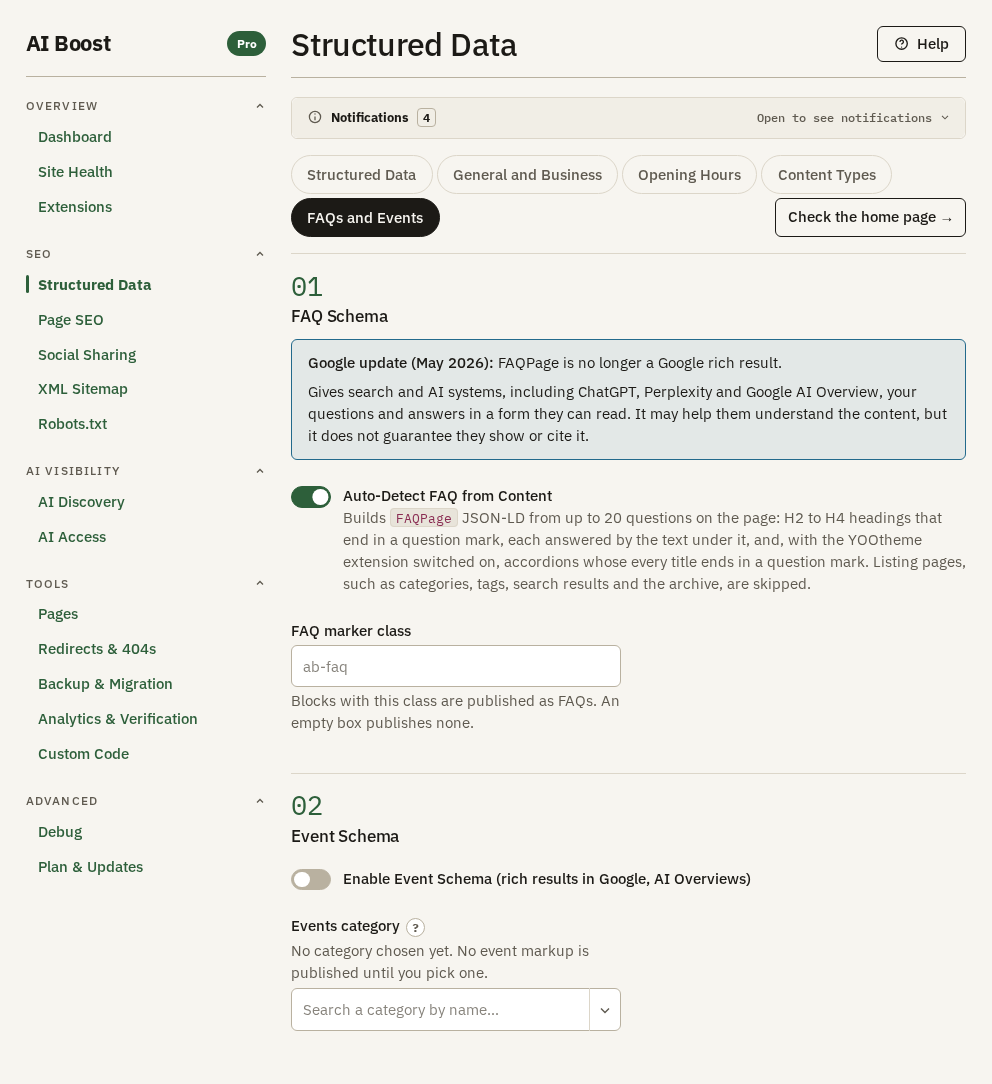
FAQ accordions, Menu items left out and Paths left out do not stop it. To keep an accordion out, reword one of its titles so it is not a question, or switch off Auto-Detect FAQ from Content, which also stops the questions read from headings.
The share card
On a page a Joomla menu item opens, the menu item's Browser Page Title and Meta Description fill the share card's title and description, where you left AI Boost's own share-card fields empty. An article's own meta description still comes first. An article opened from another menu item's page takes nothing from that menu item. A page in Menu items left out or Paths left out takes nothing either.
While the customizer previews a page
While YOOtheme's customizer previews a page, AI Boost writes nothing into it. No head tag, no JSON-LD, no analytics tag and nothing in the body. Visitors get every page as before. Redirects and the AI files, such as llms.txt, keep working during a preview, since only the page being previewed goes quiet.
YOOtheme treats a browser that has the customizer open as previewing on every front-end page it opens, for as long as its own session lasts. So the pages you open there carry nothing from AI Boost either. Read AI Boost's output from a browser that is not logged in, such as a private window. With the extension switched off, nothing tells AI Boost about the preview, and the preview keeps AI Boost's output.
Measuring tags that wait for consent
YOOtheme Pro's consent banner can hold AI Boost's Google Analytics 4, Tag Manager and Meta Pixel tags until a visitor consents. You link each tag to the banner in YOOtheme, with a script whose Consent Service ID is aiboost-ga4, aiboost-gtm or aiboost-pixel. Waiting for consent has the steps.
What Site Health adds
While YOOtheme is off, Site Health carries a row named YOOtheme, marked Switched off, on a site whose default site template is YOOtheme Pro. It says "This site uses the YOOtheme Pro template." and links to Extensions.
While it is on, and the home page carries YOOtheme's consent banner set to Opt-in or Opt-out, each AI Boost tag the home page serves with no consent category gets a row of its own, marked Worth a look, with a link to Extensions. The rows are Google Analytics 4 is not linked to the consent banner, Google Tag Manager is not linked to the consent banner and Meta Pixel is not linked to the consent banner. Each says which Consent Service ID to type. Site Health describes the rest of the screen.
YOOtheme leaves your sitemap alone.
Check it on your site
Open a page with a marked block in a browser that is not logged in, and view its source. Look for <script type="application/ld+json"> and, inside it, the type you marked, such as FAQPage, ImageGallery, VideoObject or Event. Paste that source into our JSON-LD validator to check each block. A block that is missing usually lacks a required field, carries a class that differs from the one in Marker classes, or belongs to a type that is not ticked.