

All docs
Structured Data
A search engine reading your home page sees text. It does not know that "Aldwick Lane Hotel" is a business, that the phone number underneath is that business's phone, or that the address in the footer is where it is. Structured data says so in a form a machine reads without guessing. It is code in the page's head that no visitor sees, and it carries the signals a search engine or an AI assistant reads when it names a business, shows its opening hours, or answers "is there a hotel near Old Street with a garden?". Whether one of them uses your answer is its own decision, but without structured data it has only guesses to work from.
Structured Data is the first screen under SEO in AI Boost's sidebar. It has five sub-tabs.
- Structured Data holds the facts about the business, so you type them once.
- General and Business switches the output on and chooses what kind of business you are.
- Opening Hours holds the week and the dates that differ from it.
- Content Types decides what each page says about itself.
- FAQs and Events turns questions and event articles into structured data.
The examples on this page come from a test site set up as a 24-room London hotel, the Aldwick Lane Hotel.
Switch it on and choose your type
Start on General and Business. Nothing on this screen reaches your pages until Enable structured data output is on. Switching it off later hides everything again and clears nothing you typed.
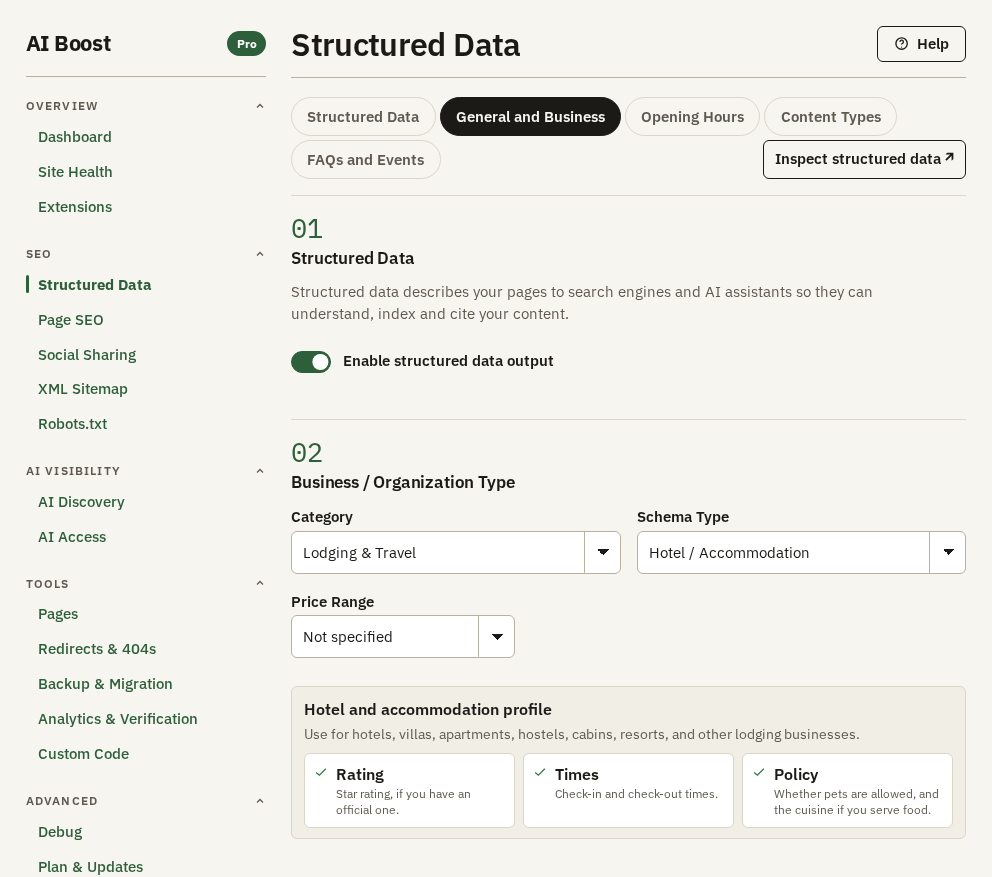
Then choose a Category, and a Schema Type inside it. There are 36 types in ten categories:
| Category | Types inside it |
|---|---|
| Organization / Generic | Organization (generic), Local Business (generic), News / Media |
| Food & Drink | Restaurant, Cafe / Coffee Shop, Bakery, Bar / Pub, Food Establishment (generic) |
| Health & Medical | Medical Clinic, Dentist, Physician / Doctor, Pharmacy, Hospital, Veterinary Care |
| Lodging & Travel | Hotel / Accommodation, Bed & Breakfast, Resort, Tourist Attraction |
| Beauty & Fitness | Beauty Salon, Hair Salon, Nail Salon, Day Spa, Gym / Health Club, Sports / Activity Location |
| Professional Services | Professional Service (generic), Lawyer / Law Firm, Accounting Service, Real Estate Agency |
| Retail & Automotive | Store / Shop, Automotive Business |
| Education & Childcare | School / University, Childcare / Preschool |
| Finance | Bank / Credit Union, Financial Service, Insurance Agency |
| Person | Person / Portfolio |
Pick the closest match rather than the general one. A hotel chosen as Hotel / Accommodation is published as LodgingBusiness, and the screen then asks the questions a hotel gets shown for, such as a star rating and check-in times. The same hotel chosen as Local Business (generic) gets none of those questions. The choice decides the type that is published, the boxes you are shown, and which of your stored answers go out with it. It switches no other setting on or off, and nothing you typed for another type is deleted.
Four types describe something with no premises the public visits, and so publish no opening hours. They are Organization (generic), News / Media, School / University and Person / Portfolio.
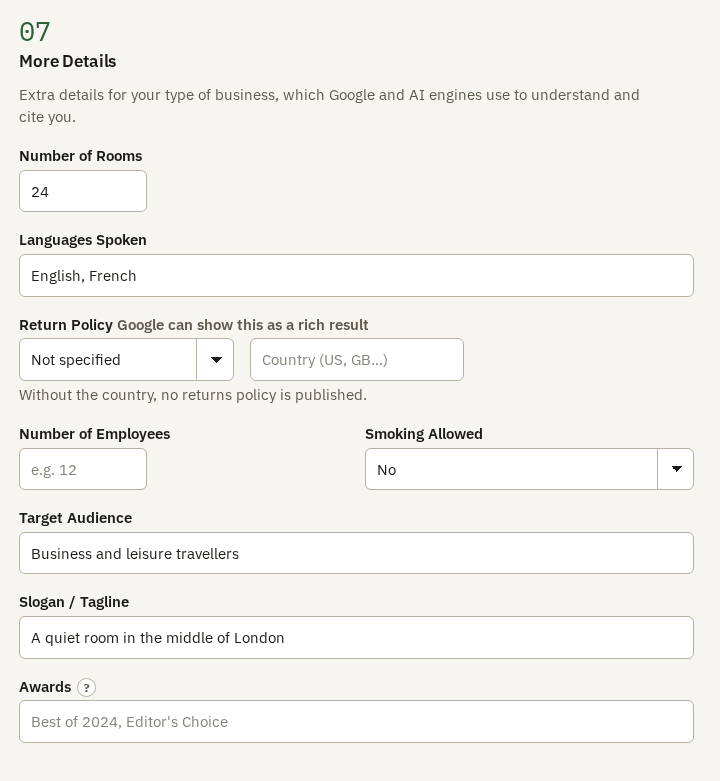
The boxes under the type depend on it. For the Aldwick Lane Hotel the screen asked for a star rating, check-in and check-out times, whether pets are allowed, the cuisine it serves, the area it serves, payment and amenities, and a section of more details.
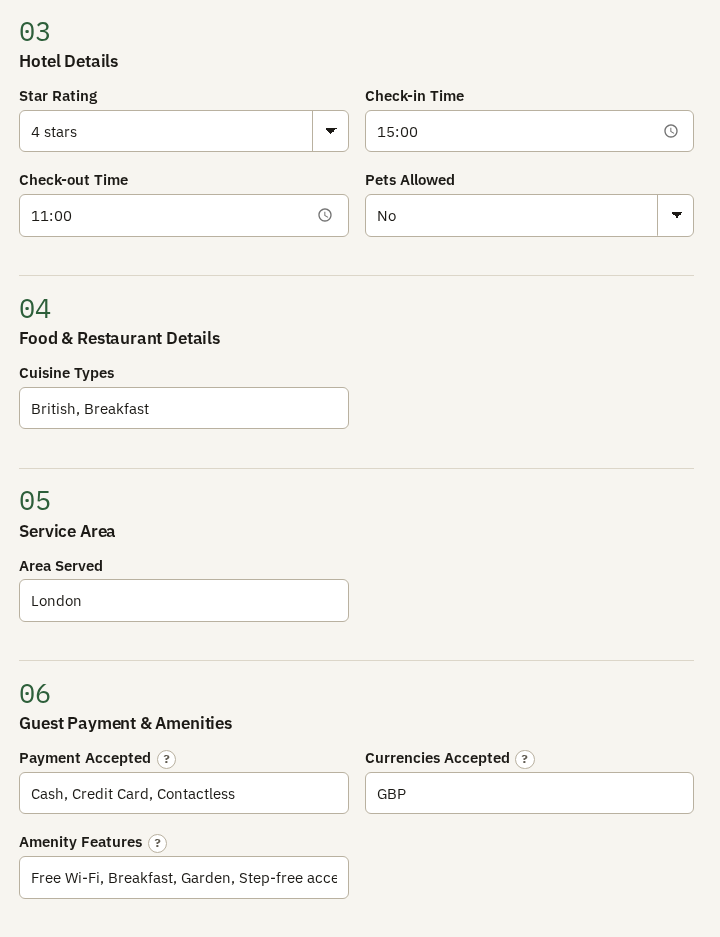
Fill in what is true and leave the rest. An empty box publishes nothing, which is better than a guess.
The business itself
The first sub-tab, Structured Data, is the business card. It is where AI Boost learns the name, the description, the logo, the contact details and the address it publishes on every page that search engines may list.
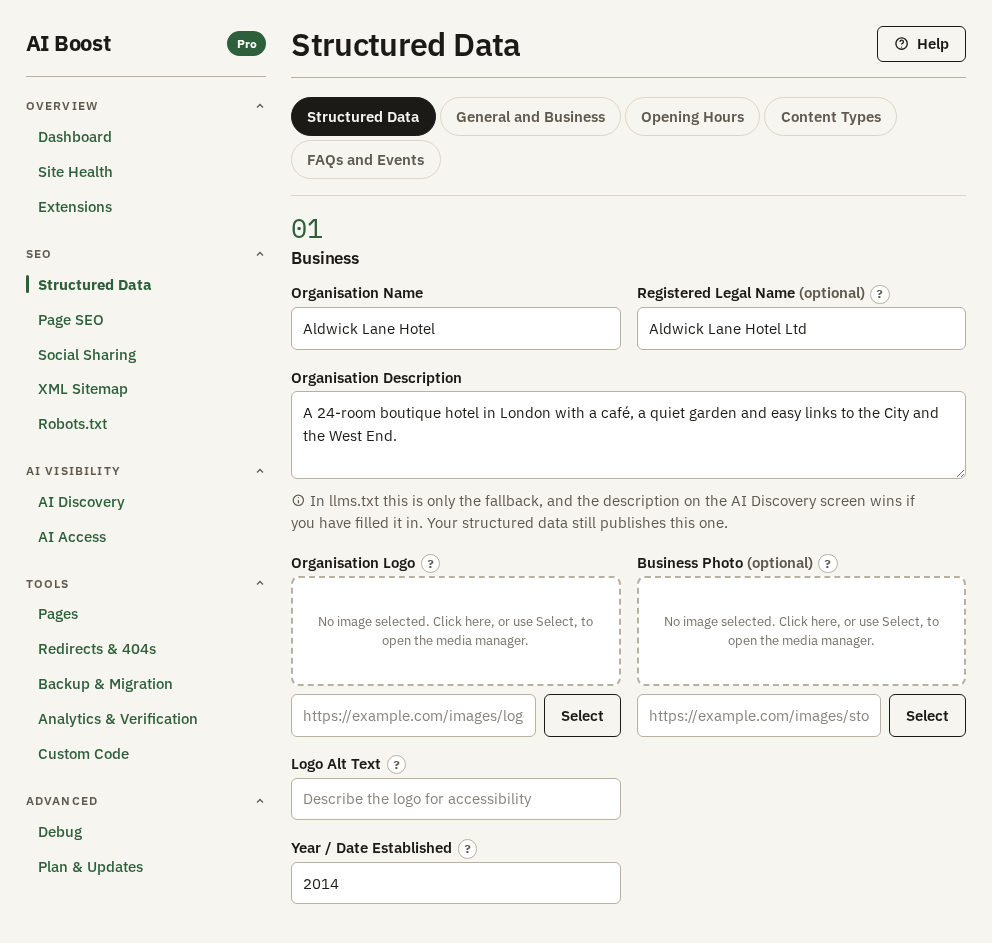
Organisation Name is the one box you must fill, because without it the business is not published at all. Write the name the way you want an assistant to say it, "Aldwick Lane Hotel" and not "Welcome to the Aldwick Lane Hotel!". Put the company's registered name, "Aldwick Lane Hotel Ltd", in Registered Legal Name, so a reader can tell the trading name from the legal one.
Organisation Description is one or two plain sentences that say what the business is and where. An AI assistant may quote it, so write it as a fact and not as an advert. The hotel's reads "A 24-room boutique hotel in London with a café, a quiet garden and easy links to the City and the West End."
Organisation Logo and Business Photo are two different pictures. The logo is your brand mark, square and at least 112 pixels. The photo is the place itself, the front of the building or the lobby.
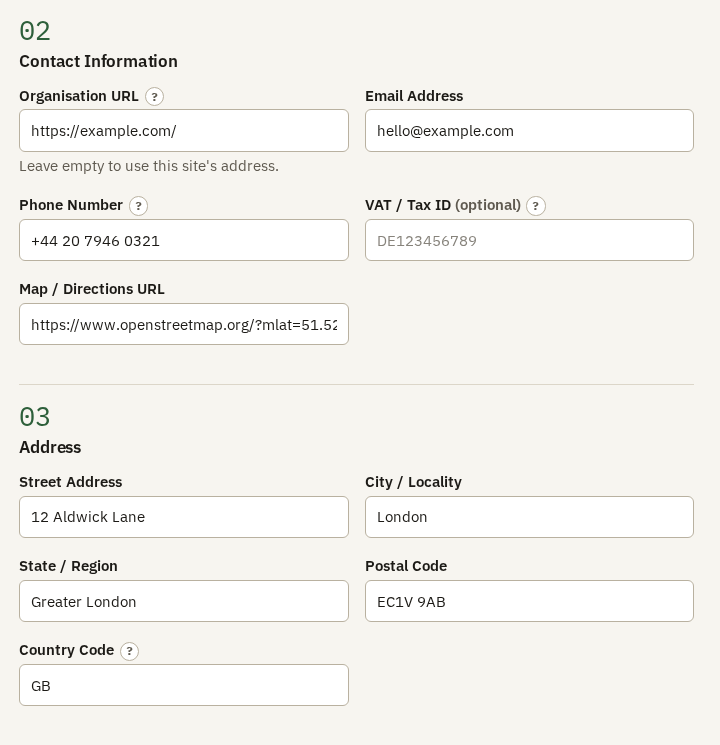
Type the Phone Number with its country code, the way someone abroad would dial it. The hotel's is +44 20 7946 0321. Leave Organisation URL empty unless the business has its own site at a different address. Type the Country Code as two letters, GB and not United Kingdom.
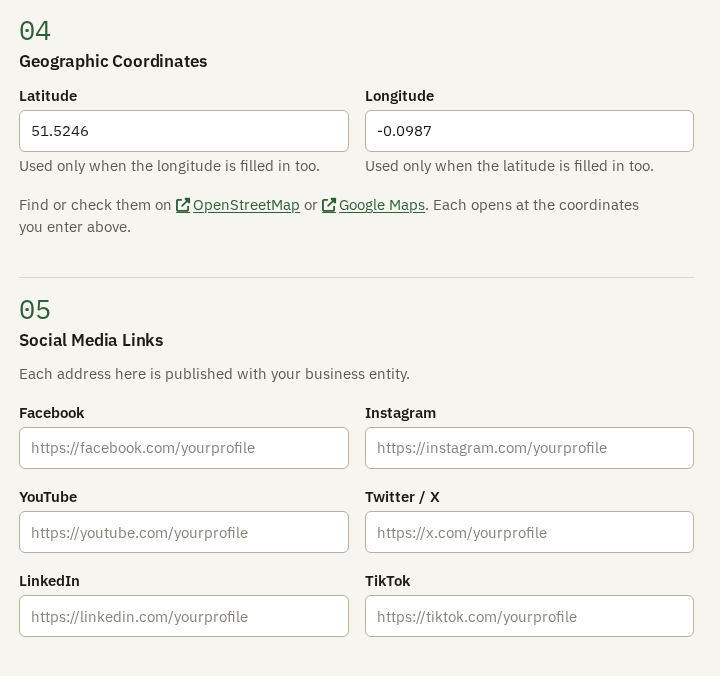
Latitude and Longitude put a pin exactly where the door is. They matter most where an address is ambiguous, a new building or a street with two numbering schemes. The two map links under them open at whatever you typed, so you can check the pin before a search engine sees it.
Each Social Media Links box takes a whole profile address, such as https://www.instagram.com/aldwicklanehotel. These go out as sameAs, which tells a search engine that the Instagram account and the website belong to the same business, rather than to two strangers with the same name.
Opening Hours
On Opening Hours, set a time to open and a time to close for each day. The heading follows your type, so a hotel sees Reception hours and a restaurant Dining hours. Open every day, Closed every day and Weekdays only fill the whole week in one press, and you adjust single days after.
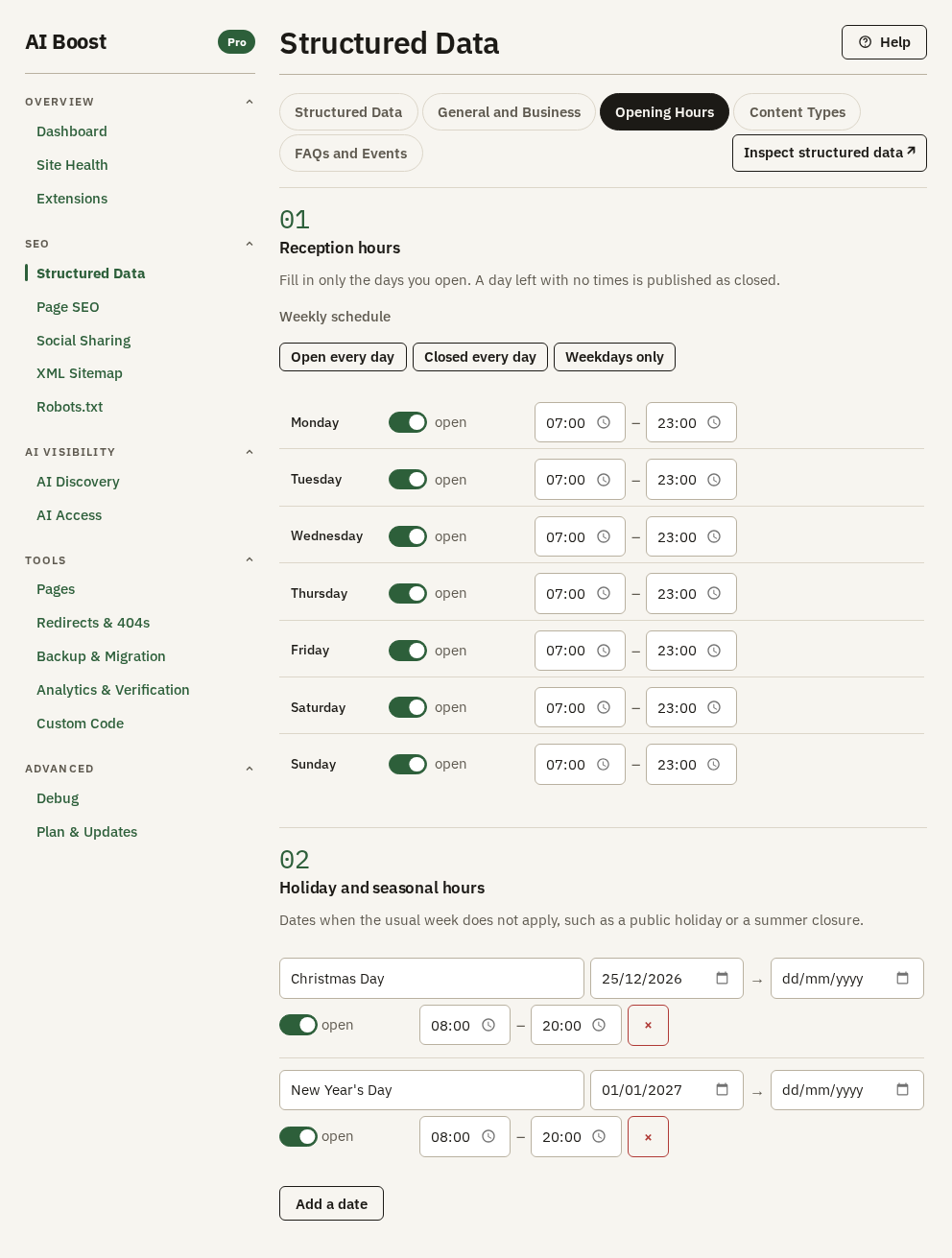
A day with no times is published as closed, so an empty Sunday tells the world you are shut on Sundays. Check the week once after you set it.
Under Holiday and seasonal hours, add one row for each date that breaks the usual week, with a label, the date, and a second date only for a range. The hotel keeps shorter hours on Christmas Day and New Year's Day. Stale hours are worse than none, because a search engine or an AI assistant may repeat them to someone standing at a locked door, so come back to this list once a year.
Content Types
Content Types decides what each page says about itself, beyond the business that publishes it. The first four switches are on when you install.
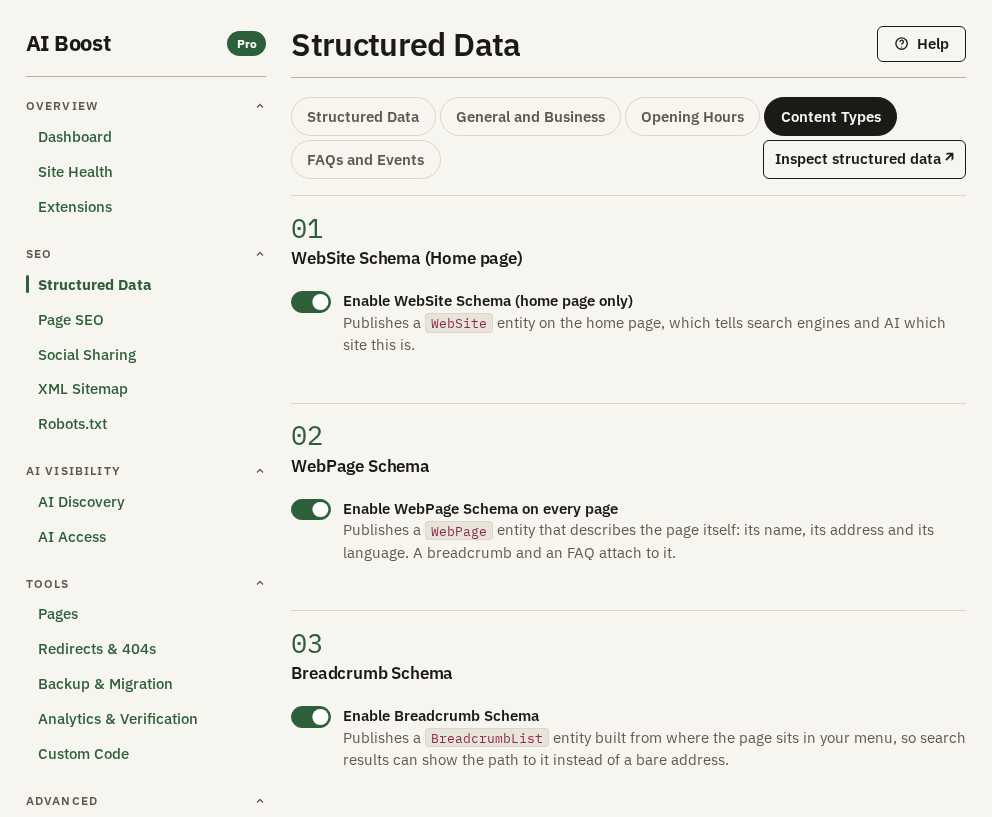
- Enable WebSite Schema (home page only) states, on the home page alone, that the site exists and who publishes it.
- Enable WebPage Schema on every page gives every page its name, address and language. The breadcrumb and the article attach to it, so leave it on.
- Enable Breadcrumb Schema publishes where the page sits in your menu, built from the menu, so Google can show a path instead of a bare address.
- Enable Article Schema on article pages gives every article its headline, author, section and dates.
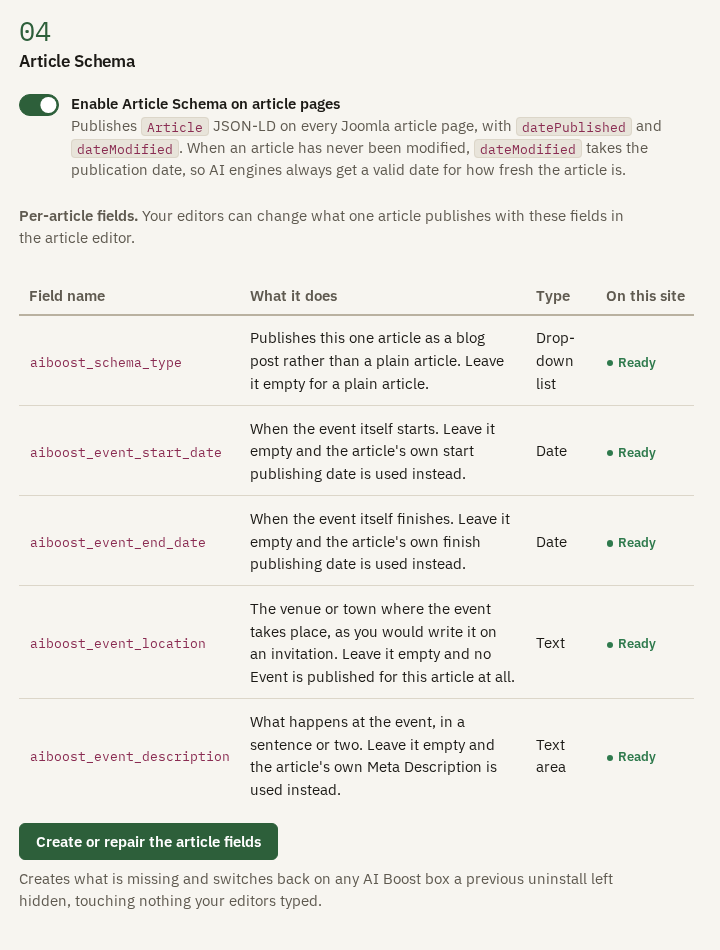
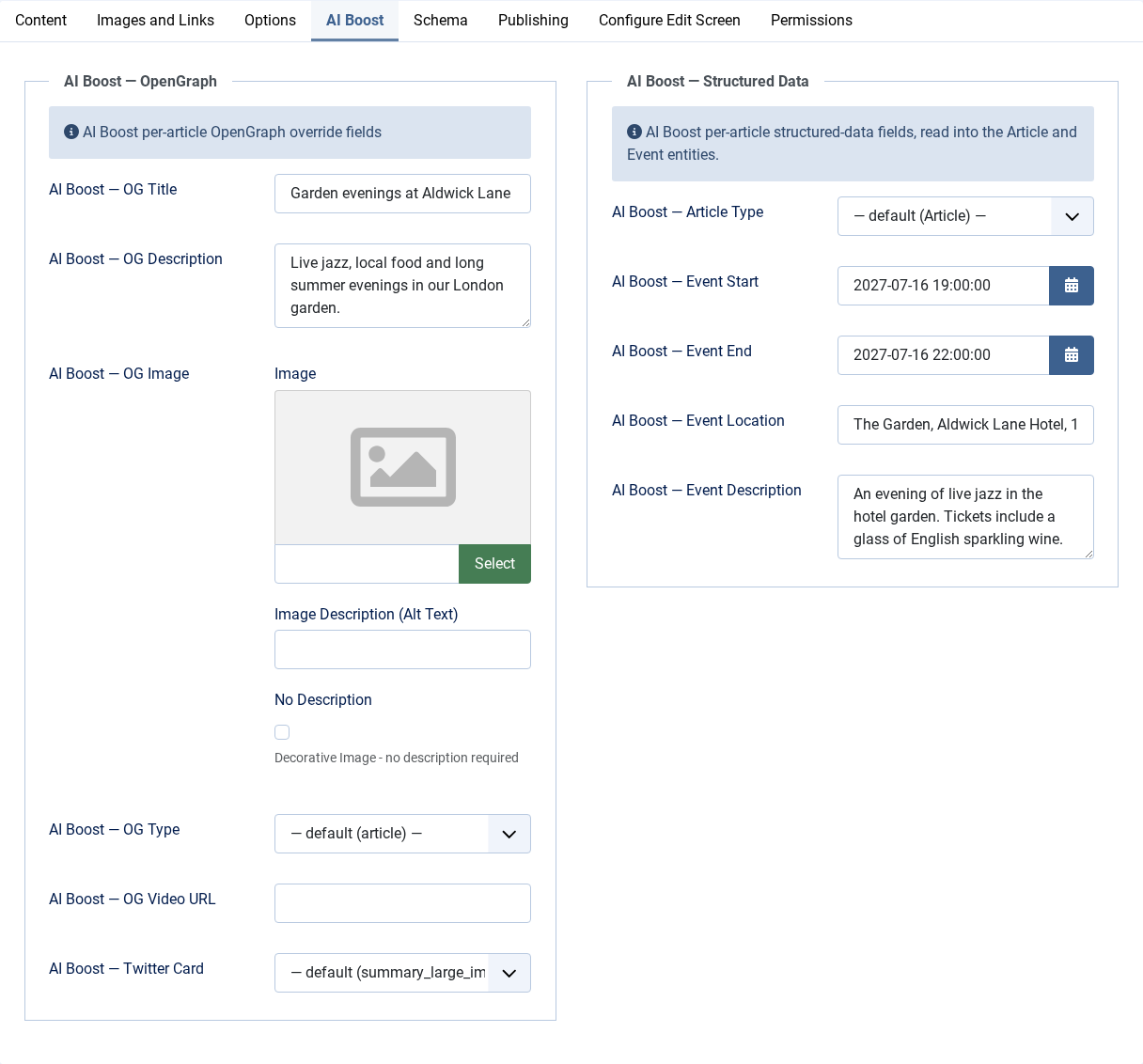
The table under Article Schema lists the fields AI Boost adds to Joomla's article editor. Your editors find them on the article's AI Boost tab.
| Field name | What it does |
|---|---|
aiboost_schema_type | Publishes this one article as a blog post rather than a plain article |
aiboost_event_start_date | When the event starts. Empty, the article's start publishing date is used |
aiboost_event_end_date | When the event finishes. Empty, the article's finish publishing date is used |
aiboost_event_location | Where the event takes place. Empty, no event is published for this article |
aiboost_event_description | What happens at the event. Empty, the article's meta description is used |
The event fields are read by the FAQs and Events sub-tab. If a field has gone missing, Create or repair the article fields puts it back without touching anything your editors typed.
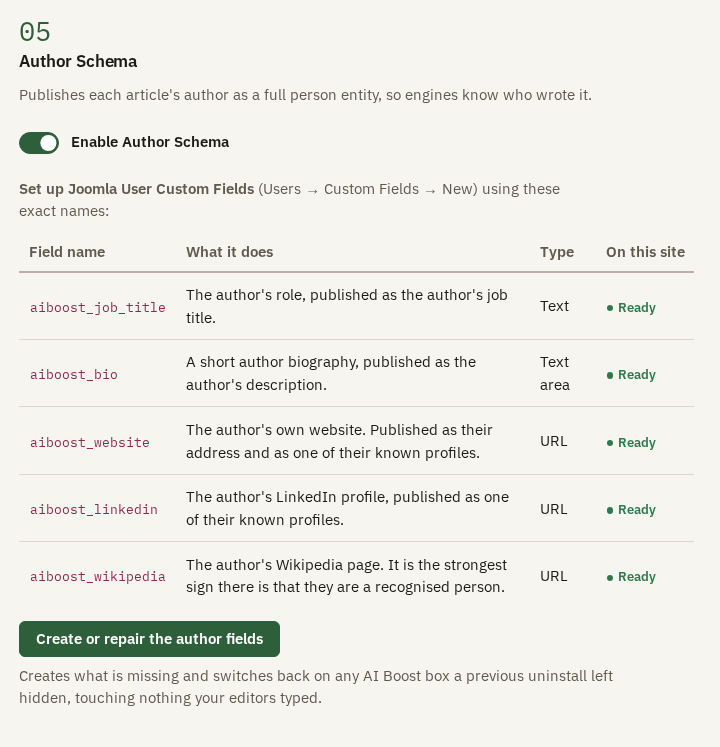
Enable Author Schema publishes each article's author as a person, with a job title, a short biography and profile links. Those come from fields on the author's Joomla user profile. Leave it off and only the author's name goes out.
| Field name | What it publishes |
|---|---|
aiboost_job_title | The author's role, as their job title |
aiboost_bio | A short biography, as their description |
aiboost_website | Their own website, as their address and one of their profiles |
aiboost_linkedin | Their LinkedIn profile |
aiboost_wikipedia | Their Wikipedia page, which marks them as a recognised person |
FAQs and Events
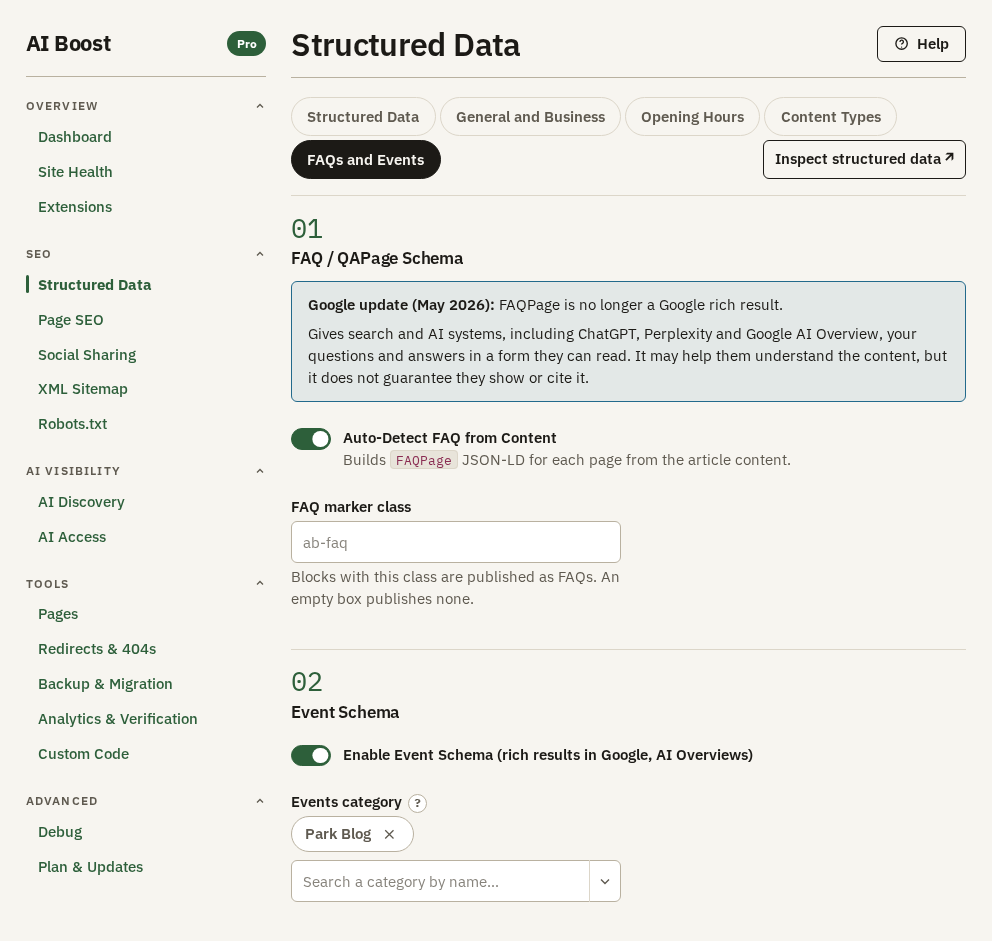
Auto-Detect FAQ from Content reads questions out of your articles. An h2, h3 or h4 heading that ends in a question mark is a question, and the text under it, up to the next heading, is its answer. If your questions sit in a block of their own, put a class on that block, type the same class into FAQ marker class, and AI Boost reads that block.
Be honest with yourself about what this gets you. Google now shows FAQ results only for well-known government and health sites, so for most sites this adds no drop-down under the listing. It still hands an AI assistant your questions and your answers in your own words.
For events, switch on Enable Event Schema (rich results in Google, AI Overviews) and choose the Events category. Every article in that category that has an event place becomes an event, with the date and place from its event fields in the article editor. Without an event start date, the article's start publishing date is used. The hotel publishes its garden jazz evenings from a category called Park Blog. An article with no place publishes no event, and with no category chosen nothing is published at all.
What AI Boost publishes
For the hotel's home page, the business part of the structured data starts like this, shortened:
{
  "@type": "LodgingBusiness",
  "@id": "https://example.com/#organization",
  "name": "Aldwick Lane Hotel",
  "legalName": "Aldwick Lane Hotel Ltd",
  "telephone": "+44 20 7946 0321",
  "address": {
    "@type": "PostalAddress",
    "streetAddress": "12 Aldwick Lane",
    "addressLocality": "London",
    "postalCode": "EC1V 9AB",
    "addressCountry": "GB"
  },
  "checkinTime": "15:00",
  "checkoutTime": "11:00",
  "numberOfRooms": 24
}
The same entity appears on every page that is not kept out of search. On an article it is followed by the WebPage, the Article, the breadcrumb, your services, the author and, for an event article, the Event. The WebPage, the Article and the Event point back at the business by its @id.
Check it on your site
Open Pages, go to Check addresses, and enter any address. Its Rich results pane lists what the structured data on that page qualifies for, and Code shows the data itself.
Inspect structured data, beside the sub-tabs, opens our JSON-LD Validator in a new tab. Paste a page's source into it to check the syntax and the types.
To check with Google's own tool, paste an address into the Rich Results Test. Passing it means Google can read the data. Whether Google then shows a rich result is its decision, and no plugin can promise one.