

All docs
Dashboard
Each AI Boost screen holds one part of what your site publishes. The Dashboard puts them side by side, so you can see in one look which parts are on, which settings under them are on, and whether anything else on the site publishes the same thing.
It is the first entry under Overview in AI Boost's sidebar, and the screen AI Boost opens on. It has four numbered sections, What each part is publishing, Extensions, Site Health and Publishing. Only the two switches under Publishing change anything. Everything else here reports, and links to the screen where you change it.
The examples on this page come from a test site set up as a 24-room London hotel, the Aldwick Lane Hotel.
What each part is publishing
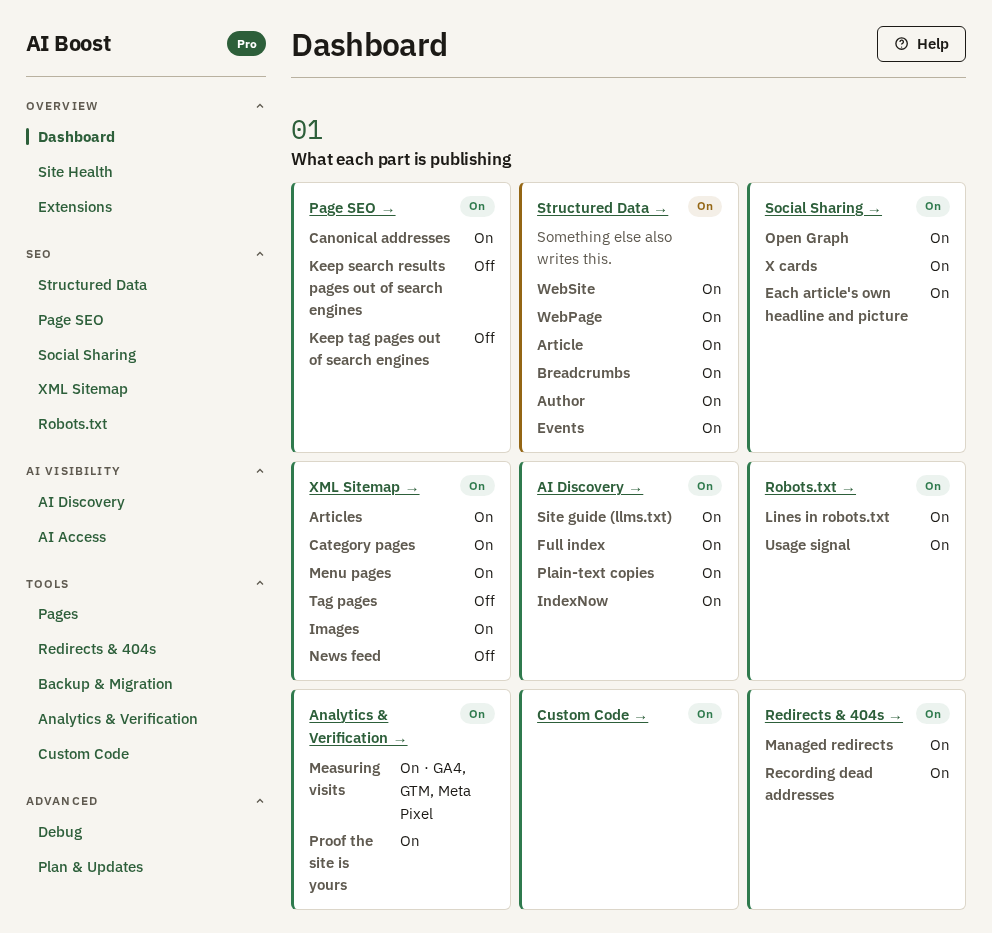
There is one card for each part of AI Boost, in the order Page SEO, Structured Data, Social Sharing, XML Sitemap, AI Discovery, Robots.txt, Analytics & Verification and Custom Code, and a last one for Redirects & 404s. The name at the top of a card opens that part's screen.
The badge beside the name says whether the part is switched on. It follows the part's first switch, such as Enable XML Sitemap for the XML Sitemap card. Three cards read more than one switch, and one reads less than its screen holds:
- Social Sharing is on when either the Open Graph tags or the X tags are on.
- AI Discovery is on when the site guide, the full index or the plain-text copies are on. IndexNow alone leaves the badge off.
- Analytics & Verification follows Measure visits alone. The verification codes have a line of their own on the card.
- Redirects & 404s is on when either of its two lines is on.
Each line under the name is one setting of that part, with On or Off beside it. A setting you never changed shows the value it had when you installed. A line keeps its own answer while the part is off, so an XML Sitemap card that reads Off can still list Articles as On. Nothing is published from that line until the part is on again.
Two lines say more than On or Off. Measuring visits names the services you gave an ID to, GA4, GTM or Meta Pixel, and reads No ID entered when there is none. Usage signal reads No answer set when AI Boost writes into robots.txt and Write usage signals into robots.txt is on, but every answer on Robots.txt is No preference. In that case no usage signal line is written.
The hotel's XML Sitemap card lists Articles, Category pages, Menu pages and Images as On, and Tag pages and News feed as Off, which are the values AI Boost installs with.
Something else also writes this
A card turns amber, with "Something else also writes this." under its name, when Joomla has one of the extensions AI Boost knows to publish the same thing switched on. These are Joomla's own Schema.org plugin, 4SEO, sh404SEF, Admin Tools, OSMap and Xmap. It can appear on Structured Data, Social Sharing, XML Sitemap, AI Discovery and Robots.txt. On the test site it sits on the Structured Data card.
Two extensions that publish the same thing can say two different things about one page, and whoever reads the page has no way to tell which one is right. Decide which extension should publish it, and switch off the other one's version.
The card learns this from the list of extensions switched on in Joomla. It does not read your pages. To see what reached a page, run Site Health. Its rows say, part by part, whether AI Boost alone writes a thing or something else writes it too.
Extensions
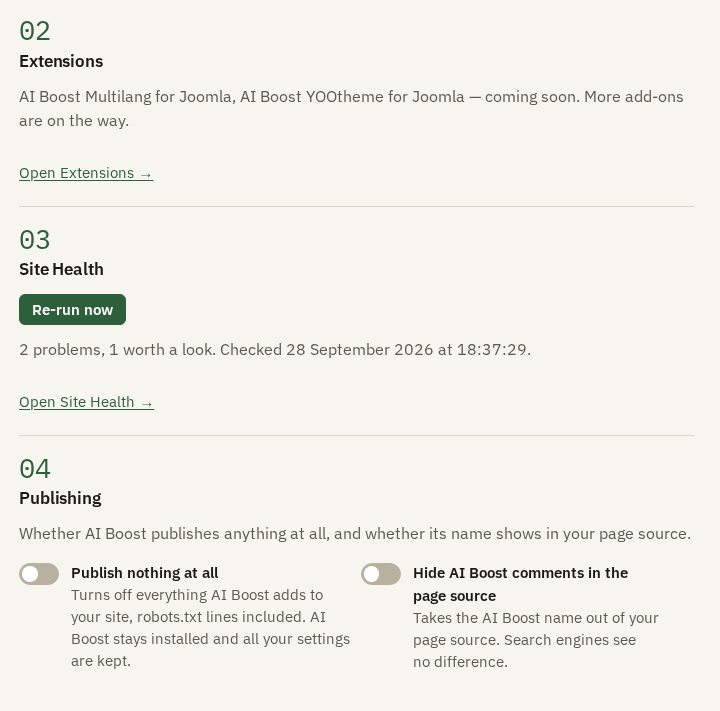
This section names the add-ons that are coming, AI Boost Multilang for Joomla and AI Boost YOOtheme for Joomla. Open Extensions takes you to the Extensions screen, which lists them. There is nothing to set here.
Site Health
This section carries the headline of the last Site Health check. Before the first one it reads No health check yet, with a Run first check button.
After a check, it counts the rows that came back as Problem, Worth a look or Could not check, and says when the check ran. On the test site it read "2 problems, 1 worth a look." followed by the date and time. When every row is Fine, Switched off or Nothing to check, it says "Everything checked is fine."
Re-run now runs the whole check again. It is the same check as Check again on the Site Health screen, and both screens show the same result. AI Boost keeps the result, so it is still here after you reload the page or come back the next day. A change to either switch under Publishing clears it, and the section goes back to No health check yet.
The counts are only a headline. Open Site Health shows the row behind each one, and Site Health explains every row.
Publishing
The two switches here are the only settings on the Dashboard. Hide AI Boost comments in the page source saves itself as you switch it. Publish nothing at all saves once you answer its question.
Publish nothing at all
Publish nothing at all is the master switch. It stops everything AI Boost adds to your site, every tag in your pages, every file it serves and its lines in robots.txt. AI Boost stays installed and every setting stays as you left it. Your redirect rules keep working, and Redirects & 404s has their own switch.
It asks before it takes effect. If your robots.txt holds nothing but AI Boost's lines, taking them out would leave an empty file, so the question also asks what to leave in its place:
- Leave no robots.txt removes the file.
- Use Joomla's default robots.txt puts Joomla's own default file there instead. It is offered when Joomla's
robots.txt.distis still in your site's root.
While the switch is on, a warning under it says the parts above reach none of your pages, whatever their cards say. The cards go on showing your settings, because those have not changed.
Switching it back asks too. Press Publish again, and every part that is switched on reaches your pages again.
Use it on a staging copy of a live site, so the copy does not publish a second set of structured data and a second sitemap. Use it also when you are working out whether a fault on your site comes from AI Boost. Switch it on, look at the page, and switch it back.
Hide AI Boost comments in the page source
AI Boost labels what it adds to the head with HTML comments, starting with one that carries its name. On the hotel's home page the head reads, shortened:
<!-- AI Boost for Joomla - Start -->
<!-- Also emitted via the CMS head: canonical link -->

<!-- Schema.org -->
<script data-mb7 type="application/ld+json">{
Hide AI Boost comments in the page source takes those comments out. AI Boost then marks the start and end of its part with two short comments that carry no name, and ends llms.txt the same way. The tags themselves stay exactly as they were, so nothing a search engine reads changes. It is for owners who would rather not show AI Boost's name in the page source. The section in robots.txt still carries the name, and the sitemap still carries an aiboostnow.com address.
Check it on your site
Open your home page in a browser, view its source, and search for AI Boost for Joomla. The lines between the Start and End comments are what AI Boost added to the head, apart from the tags it hands to Joomla. With Enable canonical URL management on, the canonical link goes in through Joomla's own head, above the Start comment. So does a title, a description or a robots tag when AI Boost sets one. The comment under Start names each of them. With Hide AI Boost comments in the page source on, the comments that carry AI Boost's name are gone. A short opening comment still lists the tags Joomla carries, and the tags themselves are still there.
For what each part actually published, rather than what is switched on, run Site Health.