

All docs
Debug
When part of AI Boost does not do what you expect, two questions come first. What did AI Boost run into, and what is this site running? Debug answers both. It also packs what your server runs, the log's totals and your AI Boost settings into one file you can send to support. Of what this screen shows, only the logging switch and Clear All change anything.
It is the first screen under Advanced in the sidebar. It has two sub-tabs, Error Log and System Information.
Error logging
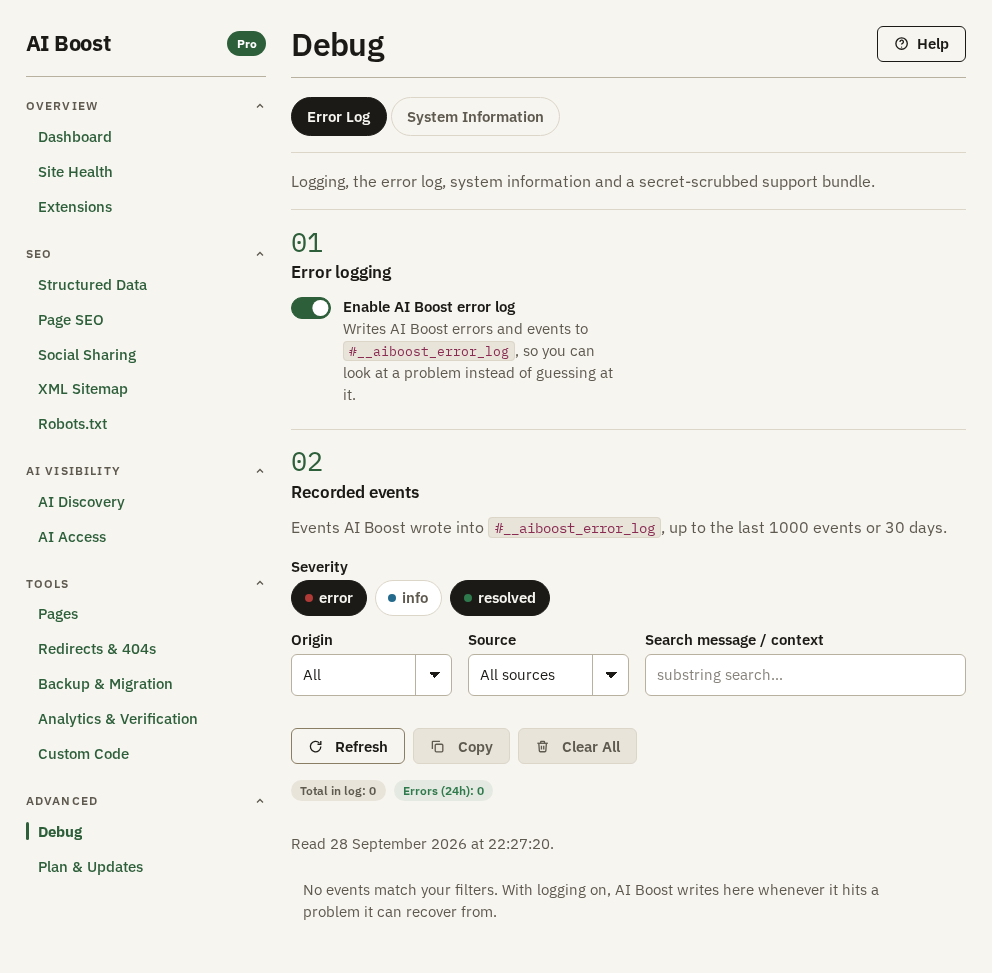
Enable AI Boost error log is on when you install. AI Boost writes each event into a table of its own in your Joomla database, the #__aiboost_error_log the screen names, where Joomla puts your own table prefix in place of #__. Events older than 30 days are removed, and so is anything past the newest 1000.
Leave it on. While it is off nothing is recorded, and the list cannot show a fault from before you switched it back on. The switch saves itself a moment after you change it.
Recorded events
The filters decide what the list below them shows.
- Severity has three buttons. error is something that failed. resolved says a fault has ended. info records something that went as planned. The screen opens with error and resolved on and info off.
- Origin narrows the list to Frontend only, what happened while your site served a visitor, or Backend only, what happened in the administrator.
- Source picks the part of AI Boost that wrote the event. The list offers only the sources already in the log.
- Search message / context finds events whose message or attached details contain the text you type.
Refresh reads the log again. Copy puts the events on the current page of the list on your clipboard, as JSON text you can paste into a message. Clear All empties the whole log after you confirm. There is no undo and no copy is kept, so copy anything support may need first.
The badges under the buttons count the events in the log and the errors in the last 24 hours, and give the time of the last event. The line under them says when the screen last read the log.
Reading the list
Once there are events, a table appears with Last seen (UTC), Severity, Source and Message, newest first and 50 to a page. Each source carries FE for the front end or BE for the administrator. When the same event happens several times on one page of the list, it is shown once with a count in front of the message.
Click a row to open it. You see every time it happened, each with When (UTC), Request ID, Row ID and the details AI Boost attached. Copy row copies one of them. A front-end event also has Copy bug report, which copies a report ready to paste into an email to support, with up to five older log lines under it.
A worked example
Say the Aldwick Lane Hotel's host makes robots.txt read-only, and the hotel then blocks a crawler on Robots.txt. The next time someone opens a page of the site, AI Boost cannot write the change, and the log gains an error from the source frontend:robots.txt, with a message that starts AI Boost could not write robots.txt and gives the reason. While the fault lasts, AI Boost records it again at most once a day, so the log does not fill with copies.
Once the host makes the file writable, the next visit writes it, and a resolved event from the same source reads robots.txt is right again. The two rows side by side tell you when the fault started and when it ended.
Switch info on and you also see what went as planned. With IndexNow on, each submission is recorded there, from the source indexnow, as a line such as IndexNow answered 200 for 1 address. An answer outside the 200s is recorded as an error instead.
System Information
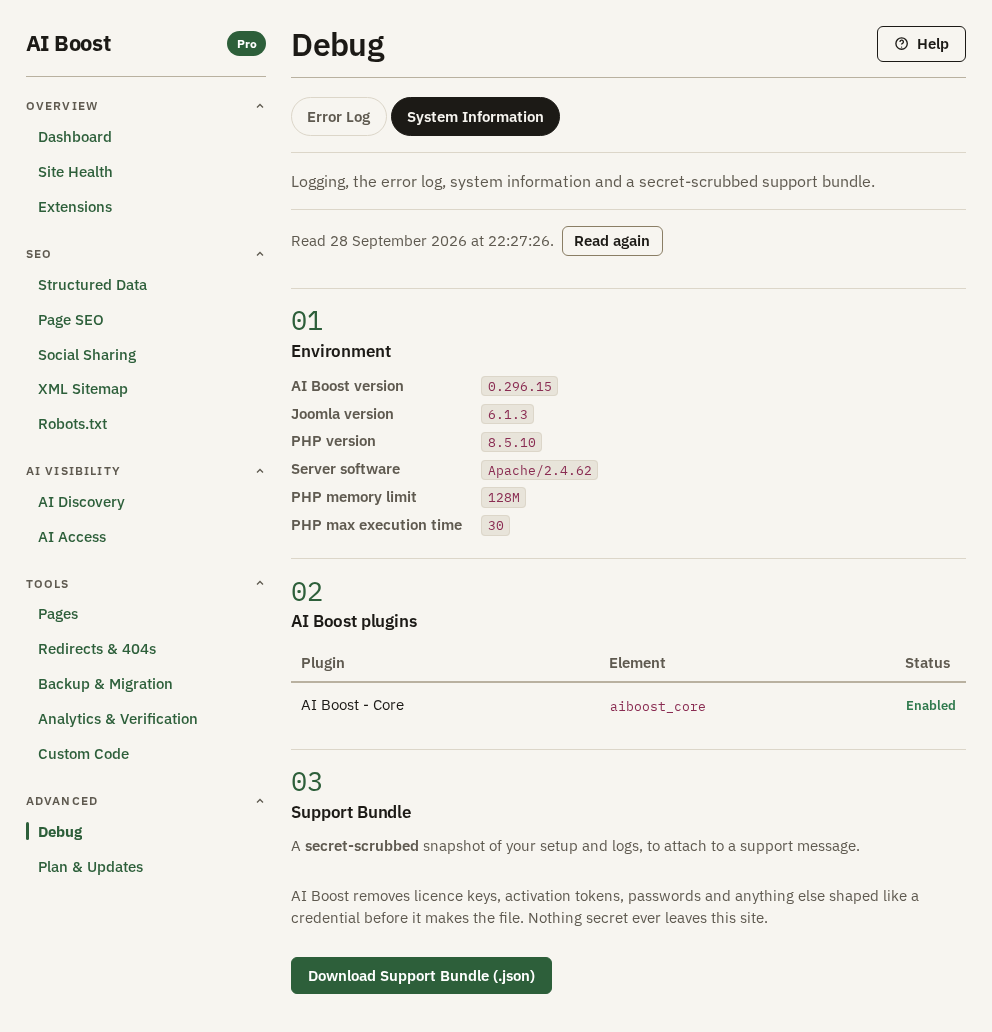
This sub-tab reads your server the first time you open Debug, and says when. Read again reads it once more, after you change something on the server.
Environment lists the AI Boost, Joomla and PHP versions, the server software, and PHP's memory limit and maximum execution time. The two PHP limits cap how much memory one request may use and how many seconds it may run. The numbers in the picture are a test site's.
AI Boost plugins lists every AI Boost plugin on the site, with its Element and Status. When a whole part of AI Boost does nothing on the front end, look here first. To switch a Disabled plugin back on, open System, Manage, Plugins in Joomla.
Support Bundle
Download Support Bundle (.json) builds a file on your site and your browser downloads it, named with the day's date, such as aiboost-support-bundle-2026-09-28.json. It holds:
- the Environment rows and the AI Boost plugins table
- the error log's totals, the three that the badges show, which are the events held, the errors in the last 24 hours and the time of the last event
- the AI Boost settings this site has stored
Before it makes the file, AI Boost replaces any value whose name or shape looks like a credential, such as a licence key, a token or a password, with [REDACTED]. The three Custom Code boxes are left out, and the file says only how many characters each one holds.
The bundle carries only the log's counts. The events themselves stay on your site. When you write to support about an error, open the row and use Copy row, or Copy bug report for a front-end event, and paste it into your message beside the bundle.
Getting help
Contact support with the bundle attached, the event you copied, and what you expected to happen.