

All docs
Social Sharing
Paste a link into WhatsApp, Slack, LinkedIn or Facebook and a card appears under it, with a picture, a title and a line of text. The app builds that card from tags in your page's head. When the tags are missing, the app guesses. It picks the first image it finds, which may be a logo from the footer, and a line of text that may be a cookie notice.
Social Sharing writes those tags, so the card is the one you chose. It is the third screen under SEO in the sidebar, with two sub-tabs, Defaults and Networks.
Defaults
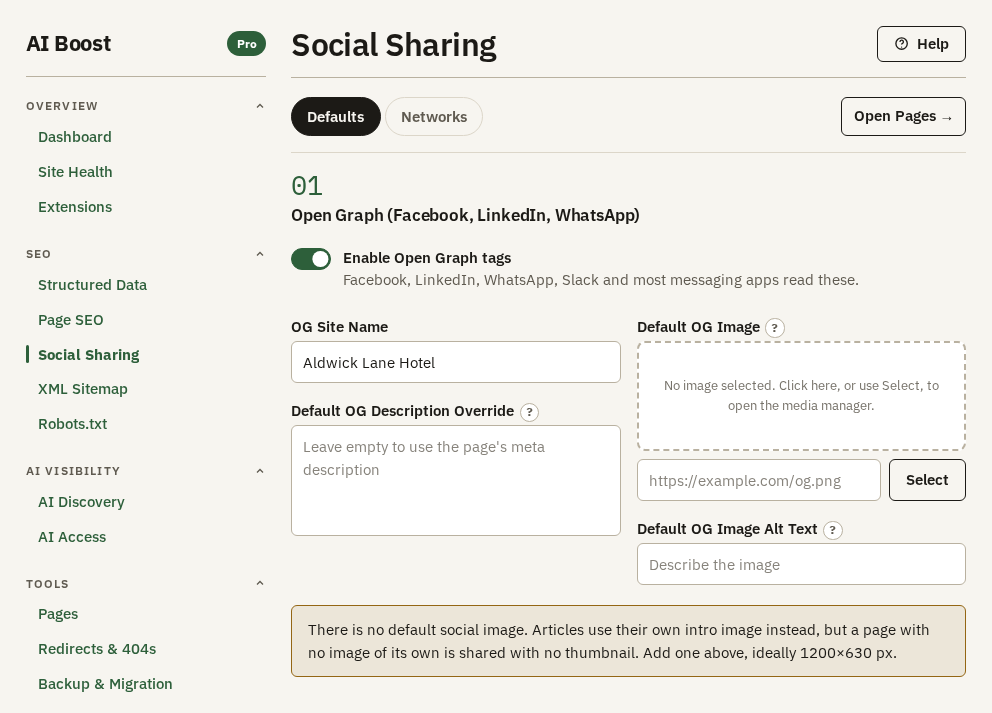
Switch on Enable Open Graph tags first. The Open Graph tags need it. The X tags on Networks have a switch of their own.
OG Site Name is the site's name on the card, in the apps that show one. Left empty, Joomla's own site name is used.
Default OG Image is the picture for any page that brings none of its own. It works best at 1200 by 630 pixels, which is the shape Facebook and LinkedIn draw. A photograph works far better than a logo here. For a hotel, the front garden in the late afternoon says more than the crest, and a small logo on a wide card looks like a mistake. The test site has no default image yet, which is why the screen shows a warning. Give it a Default OG Image Alt Text as well, one short sentence a screen reader reads out in its place.
When a page is shared, AI Boost looks for a picture in this order:
- The picture an editor set for this one article, in its sharing fields.
- The article's intro image, or its full article image when it has no intro image.
- The Default OG Image.
A category page tries the category's own sharing image and the category image before the default. If none exists, the card has no picture. The screen warns you when no default is set.
Default OG Description Override is better left empty. Once filled, it replaces the meta description on the card of every article, the home page and other menu pages, unless an editor set a sharing description. A category, tag or contact page that has a description of its own keeps it. A page's own description makes a better card than the same sentence under every link.
Letting editors choose for one article
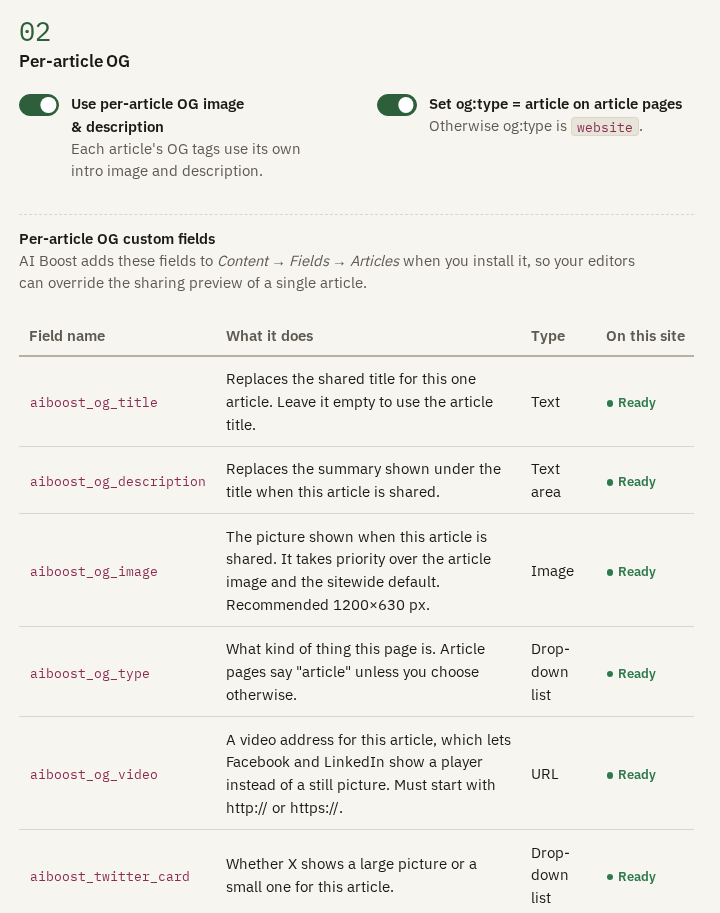
Each article's card uses its own intro image and description. With Use per-article OG image & description on, which it is when you install, editors can also override them. AI Boost adds six fields to the article editor, and three to categories, so an editor can give one page a different title, line or picture for sharing. They appear on the article's AI Boost tab.
| Field name | What it does |
|---|---|
aiboost_og_title | Replaces the shared title of this one article |
aiboost_og_description | Replaces the line under the title |
aiboost_og_image | The picture for this article, ahead of its own image and the default |
aiboost_og_type | What kind of thing the page is. Article pages say article unless you choose otherwise |
aiboost_og_video | A video address, published as og:video for the apps that read one |
aiboost_twitter_card | Whether X shows a large picture or a small one |
Categories get aiboost_cat_og_title, aiboost_cat_og_description and aiboost_cat_og_image, which do the same for a category page.
The hotel's garden jazz article is titled "First Blog Post" in Joomla, which is a poor thing to see on a card. Its editor typed "Garden evenings at Aldwick Lane Hotel" into the sharing title field and a one-line description under it. The card now reads the way a guest would describe the evening.
These are ordinary Joomla custom fields, so you may rename them or limit who can edit them. If one has been deleted, Create or repair the article sharing fields puts it back, and Create or repair the category sharing fields does the same for categories.
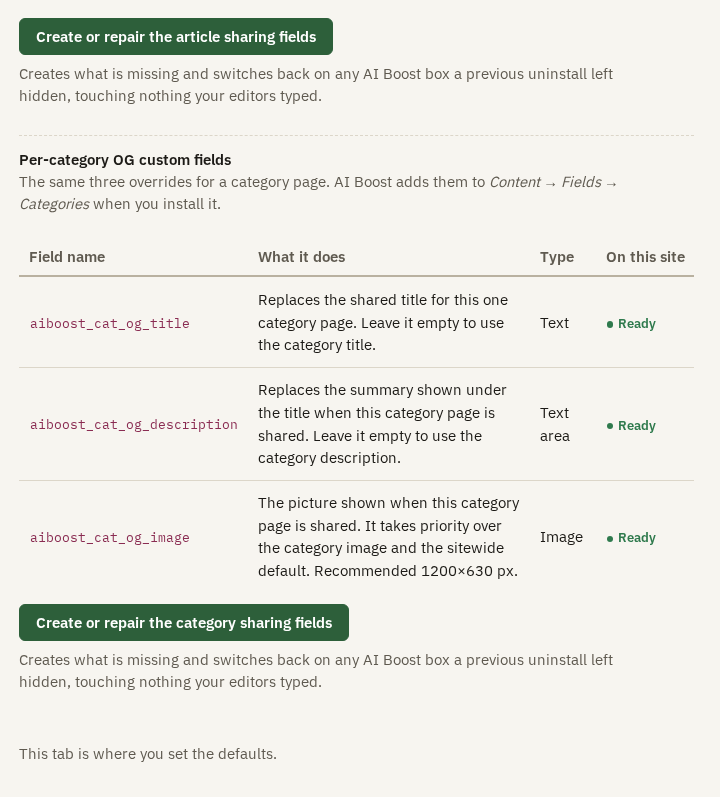
Set og:type = article on article pages tells an app it has an article, so the card can carry a date and an author. Leave it on unless you have a reason not to.
Networks
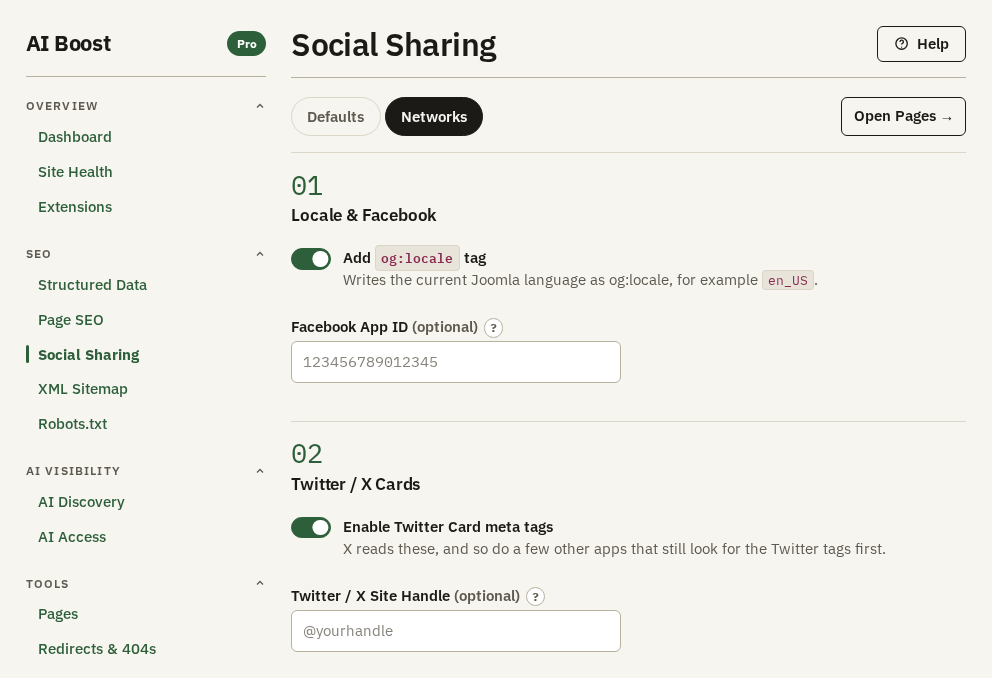
Add og:locale tag publishes the page's language, written as en_GB. Facebook App ID is for a site that has a Facebook app, and costs nothing left empty.
Enable Twitter Card meta tags adds the tags X reads. When a page has a picture, the card is the large one with the picture across the top. A page with no picture gets the small card. Put your brand's X handle, with the at sign, in Twitter / X Site Handle, so a shared card credits you.
What AI Boost publishes
For the hotel's jazz article, with the per-article fields filled in, shortened:
<meta property="og:type" content="article">
<meta property="og:url" content="https://example.com/park-blog/first-blog-post">
<meta property="og:site_name" content="Aldwick Lane Hotel">
<meta property="og:title" content="Garden evenings at Aldwick Lane Hotel">
<meta property="og:description" content="Live jazz, local food and long summer evenings in our London garden.">
<meta property="og:locale" content="en_GB">
<meta property="article:section" content="Park Blog">
<meta name="twitter:card" content="summary">
<meta name="twitter:title" content="Garden evenings at Aldwick Lane Hotel">
The card is the small summary one here, because this test page has no picture. Give it one and it becomes summary_large_image.
Check it on your site
The Open Pages button, top right, takes you to Pages. On Check addresses, enter an address and open Share. It draws the Facebook and X cards that page really publishes, fallbacks included, and Code lists the tags behind them.
Apps keep a copy of a card for days. After you change a picture, ask Facebook to read the page again with its Sharing Debugger, and LinkedIn with its Post Inspector.