

All docs
Page SEO
Every page on your site has a title and a description. In a Google result they are the blue line and the grey lines under it. Joomla writes both from the article's own fields, and most sites never look at them again. Page SEO lets you set a pattern once for each kind of page, so every article, category and tag page gets a consistent title without anyone editing it by hand.
It also decides which address counts when a page can be reached at several, and which pages stay out of search altogether.
Page SEO is the second screen under SEO in the sidebar. It has four sub-tabs, Titles, Descriptions, Canonicals and Indexing.
Search engines treat titles, descriptions and canonicals as strong suggestions. Google in particular rewrites titles and descriptions it thinks do not fit the page, and nothing on this screen can stop that.
Titles
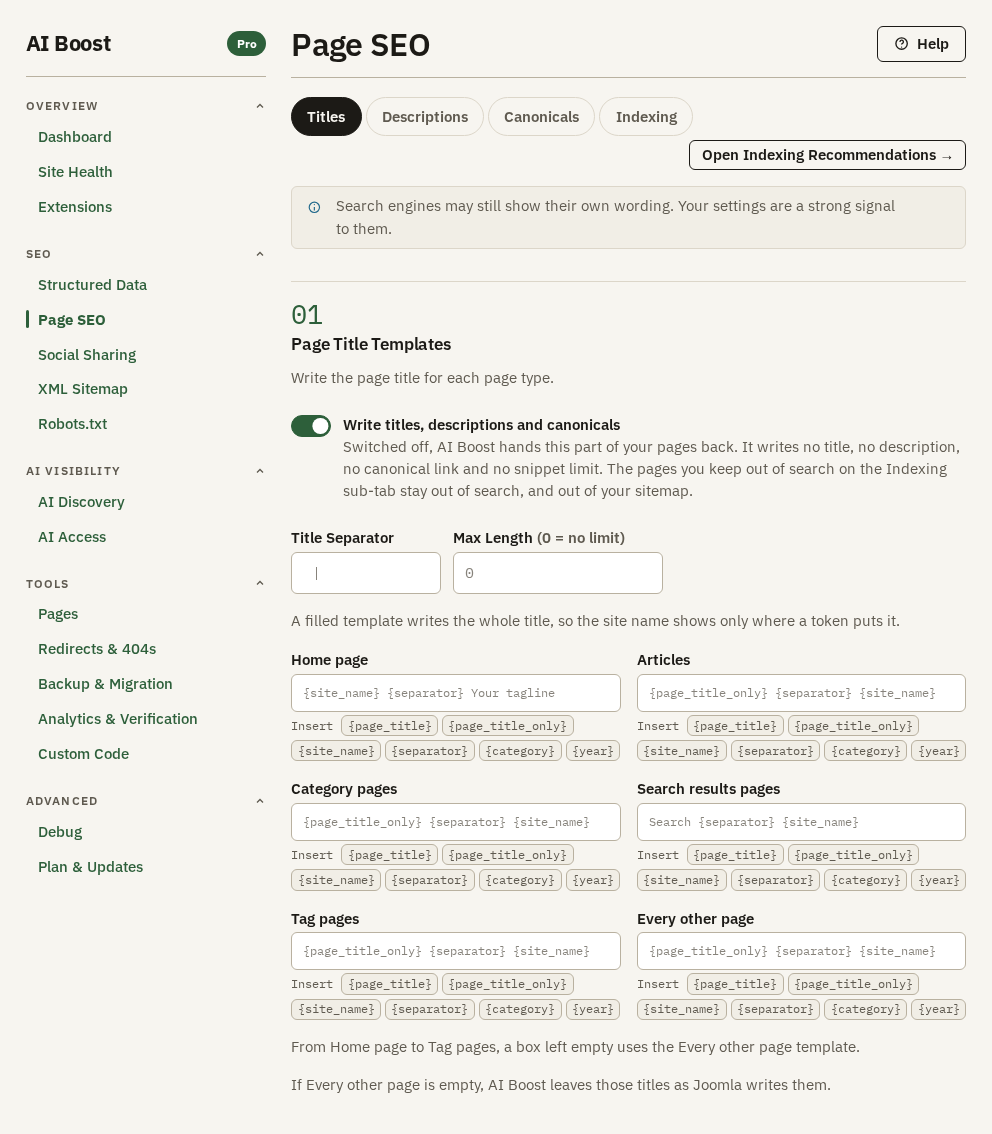
Write titles, descriptions and canonicals is on when you install, but it writes nothing until you fill in a template. It is also the switch for the next two sub-tabs. Switch it off and AI Boost writes no title, no description, no canonical link and no snippet limit, and Joomla's own values stand. The pages you keep out of search on Indexing stay out either way.
Each template is built from tokens in braces. The chips under a box insert them.
| Token | What it becomes |
|---|---|
{page_title} | The page's own title, as Joomla produced it |
{page_title_only} | The same title, with the site name Joomla adds taken off |
{site_name} | The site name from Joomla's Global Configuration |
{separator} | The Title Separator set above the templates |
{category} | The article's category name, filled on article pages only |
{year} | The current year |
A worked example. Say Joomla's site name is Aldwick Lane Hotel, and the Title Separator keeps its default, a vertical bar with a space on each side. The separator brings its own spaces, so leave none around the token. With the Articles template set to {page_title_only}{separator}{site_name}, an article called "Garden evenings" gets the title "Garden evenings | Aldwick Lane Hotel". Set the Category pages template to {page_title_only}{separator}{site_name} and a category called Park Blog becomes "Park Blog | Aldwick Lane Hotel".
A filled template writes the whole title. If you leave {site_name} out, the site name does not appear, even where Joomla would have added it.
A box left empty uses the Every other page template. If that one is empty too, Joomla's title stands on those pages.
Max Length cuts a written title at that many characters and ends it with an ellipsis, and 0 means no limit. Google cuts long titles anyway, so the setting only decides where the cut falls. About 60 is the usual choice.
Descriptions
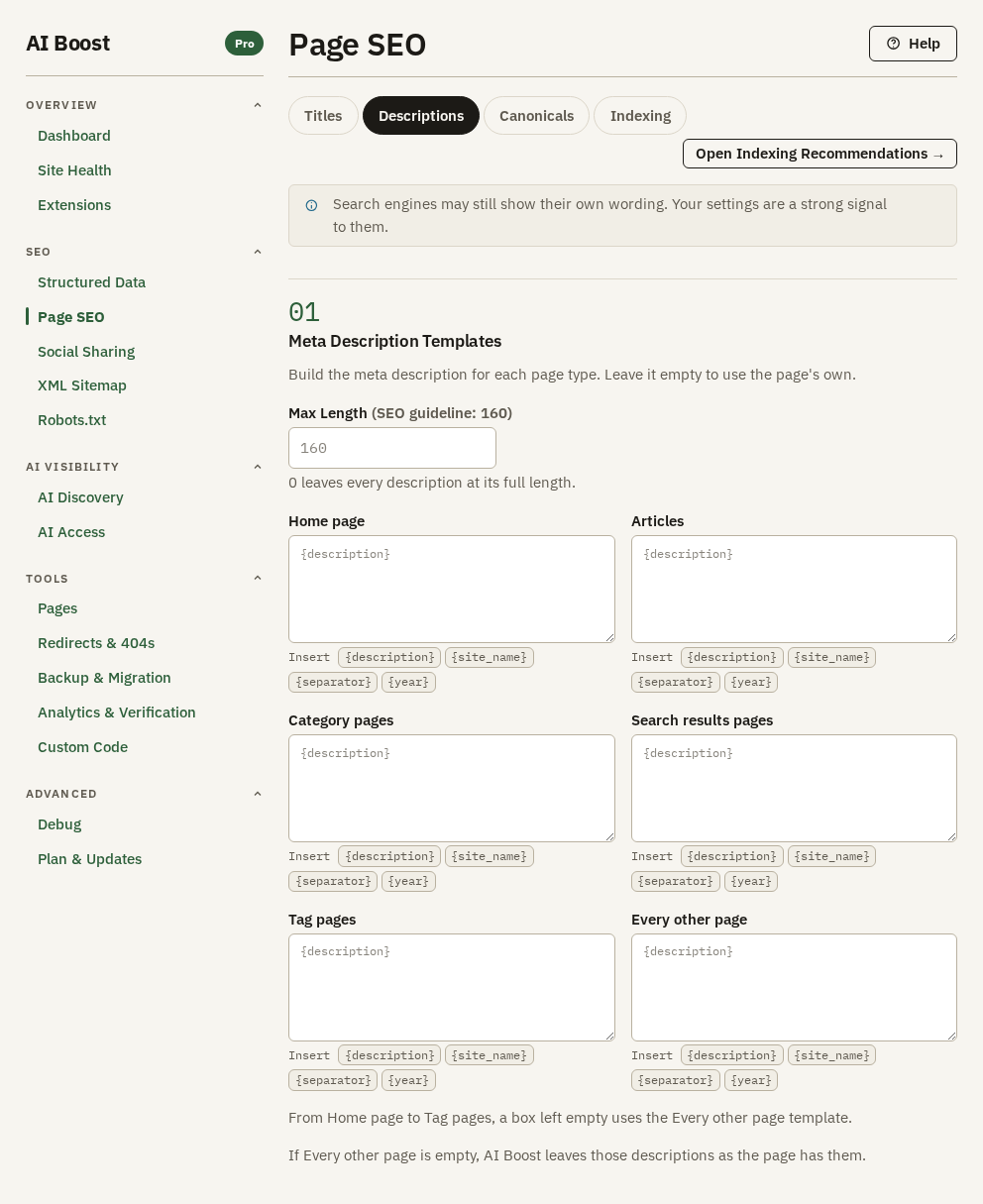
Descriptions work the same way, with fewer tokens. The usual answer is {description} on its own, which takes the page's own meta description from Joomla. A box left empty uses the Every other page template. If that is empty too, the page keeps its own description.
The description does not move you up a Google result. It is the sentence under your title that decides whether someone clicks, so the useful part goes first. Max Length cuts it at that many characters, with 160 as the guideline printed beside the box.
Canonicals
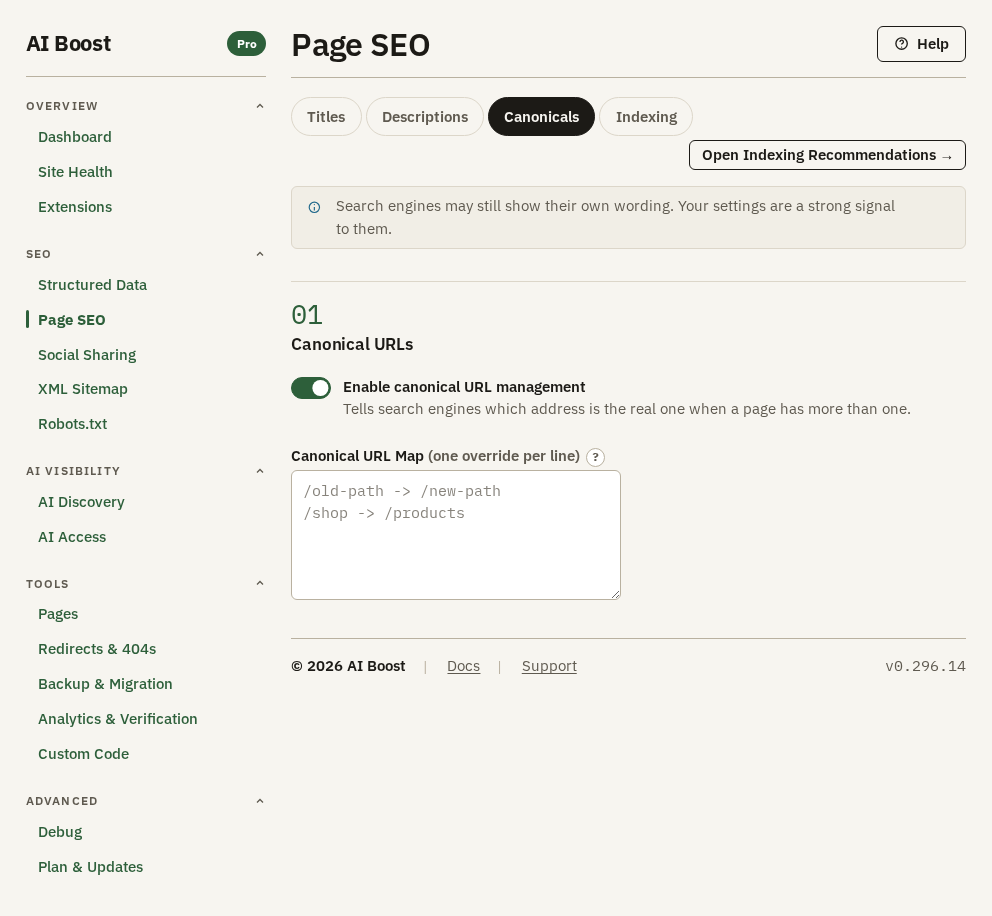
A Joomla page can often be reached with extra parameters on the end, such as a tracking tag like utm_source or fbclid, a print view, or ?start=0. To a search engine those can look like several thin copies of one page. Enable canonical URL management adds a canonical link that names the address with those parameters taken off, so the copies add up instead of competing. An article that opens at two different paths, say from the menu and from its category, gets a canonical for each, so point one at the other with the Canonical URL Map below.
Canonical URL Map is for the rarer case where one page should hand its standing to a different page. Write one override per line, with the old path on the left and the new one on the right. A line covers every address beneath its left side.
/old-rooms -> /rooms
/offers/summer-2025 -> /offers
If you moved a page for good, a redirect under Redirects & 404s is usually the better tool, because it moves the visitors as well.
Indexing
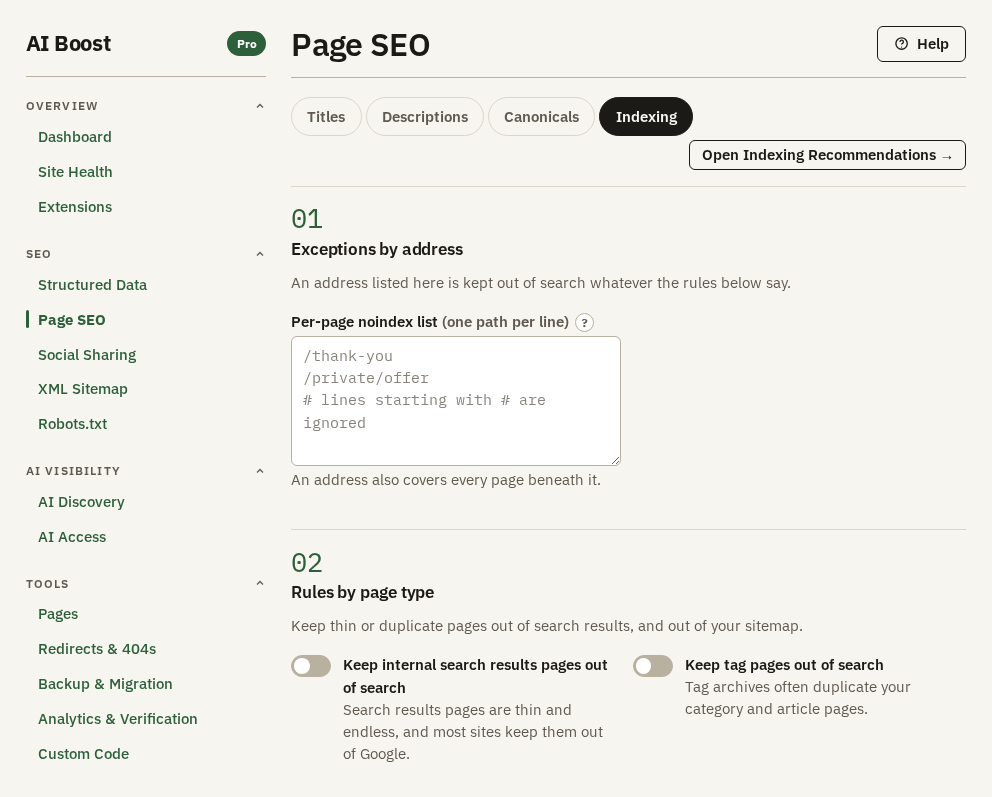
Indexing keeps pages out of search results. A page kept out gets a noindex tag and leaves your sitemap too.
Per-page noindex list takes addresses one per line, copied from your browser's address bar, and each covers every page beneath it. Lines that start with # are ignored, so you can leave yourself a note. The hotel keeps its booking confirmation out:
# Pages a guest reaches only after booking
/thank-you
/booking/confirmed
An address on this list stays out of search whatever the rules under it say.
Keep internal search results pages out of search and Keep tag pages out of search do the same for whole kinds of page. Search results pages are nearly always worth keeping out. Tag pages depend on your site. Keep them out if your tags make thin lists, and leave them in if a tag page is one you would send a visitor to.
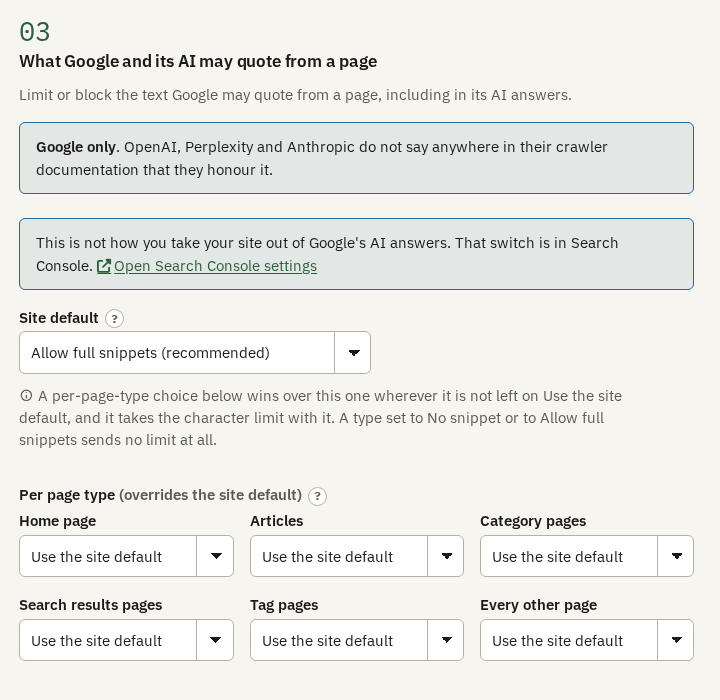
The last section decides how much of a page Google may quote, both in the text under a result and in Google's own AI answers. Allow full snippets is right for nearly every site. No snippet and a very short character limit leave your results with no description at all, so set them only on the page types that need it, in Per page type.
This is a Google setting. Bing honours it for its own results, and OpenAI, Perplexity and Anthropic have not said that they do. It is also not how you take a site out of Google's AI answers entirely. That choice lives in Google Search Console, and the screen links to it.
Check it on your site
Open Pages. Its Overview tab lists every address with whether it is indexed and whether it is in the sitemap. On Check addresses, enter one address and look at Google to see the title and description AI Boost wrote, drawn the way Google draws a result.
The button at the top right of this screen opens the Advice tab on Pages. It reads your menus and components and suggests what should stay out of search and what should stay in.