

All docs
Pages
Joomla keeps no single list of the addresses your site publishes. Articles live under Content, menu items under Menus, tags under Components, and whether a page is indexed or in your sitemap is decided in several more places. Pages puts every address in one table, says what your settings make of each one, and reads the pages themselves for problems.
Pages is the first screen under Tools in the sidebar. It has four tabs.
- Overview lists every address with its sitemap and indexing answers, and scans them.
- Site read sorts the last scan by problem, so you see what is wrong across the whole site at once.
- Advice reads your menus and suggests which pages should stay out of search.
- Check addresses reads one address, or a list of them, and shows what it publishes.
The screenshots come from a test site, the Aldwick Lane Hotel at example.com, which also carries Joomla's sample articles. The counts and dates in them belong to that site. Yours will be different.
Overview
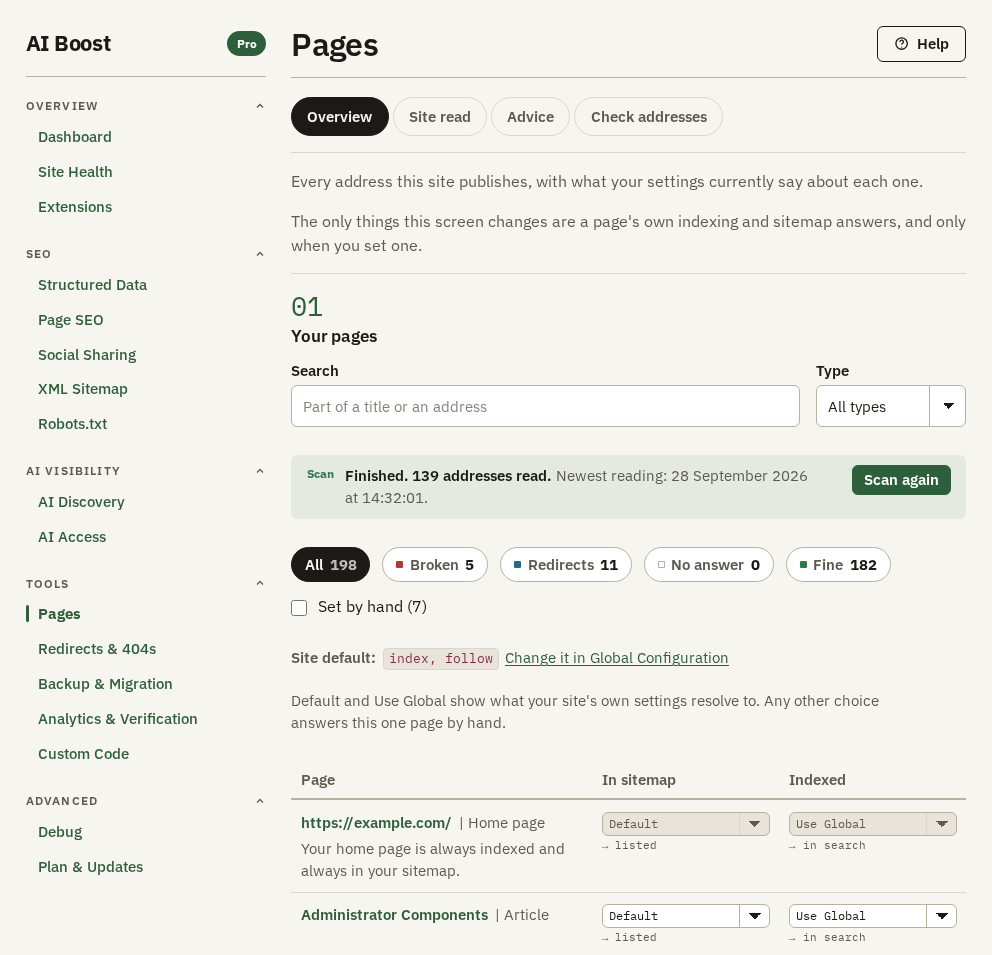
Overview reads your site's own database, so the table appears without opening a single page. Each row is one address, with the kind of page beside its title, such as Article or Category page.
Only two things on this tab change your site, a page's In sitemap answer and its Indexed answer, and only when you set one. The rest reports.
Find a page
Search narrows the table to the titles and addresses that contain what you type. It searches the whole site, and Enter runs it. Type shows one kind of page at a time, and offers only the kinds your site has.
Scan your addresses
The line marked Scan reads your pages from the outside. Your server opens every address in the table, five at a time, records what came back and checks each page for problems. Press Start scan the first time and Scan again after that. One scan reads up to 500 addresses. On a larger site the line says that only the first ones were taken.
Stop ends a scan for good, and Scan again starts a new one. You can leave the screen while a scan runs. The server keeps its place, and when you come back to Pages the scan carries on from there.
The chips under the line filter the table by what the last scan found. They are All, Broken, Redirects, No answer and Fine, plus Not on this site when a scan met such an address. Until a scan has run, every chip but All shows a dash in place of its count. Press Broken and the table keeps only the addresses that ended on an error or went round in redirects. Click one and Check addresses shows where it went wrong.
Set by hand keeps only the pages whose sitemap or indexing answer someone chose for that one page, with the count in its label. Tick it before a redesign or a clean-up, and you see every decision that no rule explains.
The two answers
Site default shows what Joomla's Global Configuration asks of every page, index, follow on the test site. Change it in Global Configuration opens that screen.
Click a title in the Page column and Check addresses reads that address.
In sitemap takes Default, Listed or Not listed. Default follows your XML Sitemap settings, and the line under it says what they come to, → listed or → not listed. Listed puts the page in the sitemap even when its kind of page is switched off there. Not listed keeps it out. An address on your no-index list on Page SEO stays out of the sitemap whatever you choose. Tag pages have no sitemap answer of their own yet, and their cell says so.
Indexed takes the five values Joomla uses for a page's own Robots setting, Use Global, index, follow, noindex, follow, index, nofollow and noindex, nofollow. Use Global follows Site default and your Page SEO rules, and the line under it says the result, → in search or → hidden. The answer is saved in the Robots setting Joomla keeps for that article, category, tag or menu item, so it is the same value Joomla's own editing screens show. Saving it needs your Joomla permission to edit that kind of item.
A rule may make a page stricter and never looser. When your no-index list or a Page SEO rule keeps a page out of search, its row does not offer the two index values, because the rule would overrule them.
A choice saves the moment you make it. Rest the pointer on a choice and it says what decided it, for example that the Articles rule lists this type.
The home page row has both choices greyed out, because AI Boost has nowhere to store an answer for the home page alone. The home page is always in your sitemap while the sitemap is on. Whether it is in search follows Site default, and the line under each choice says the result.
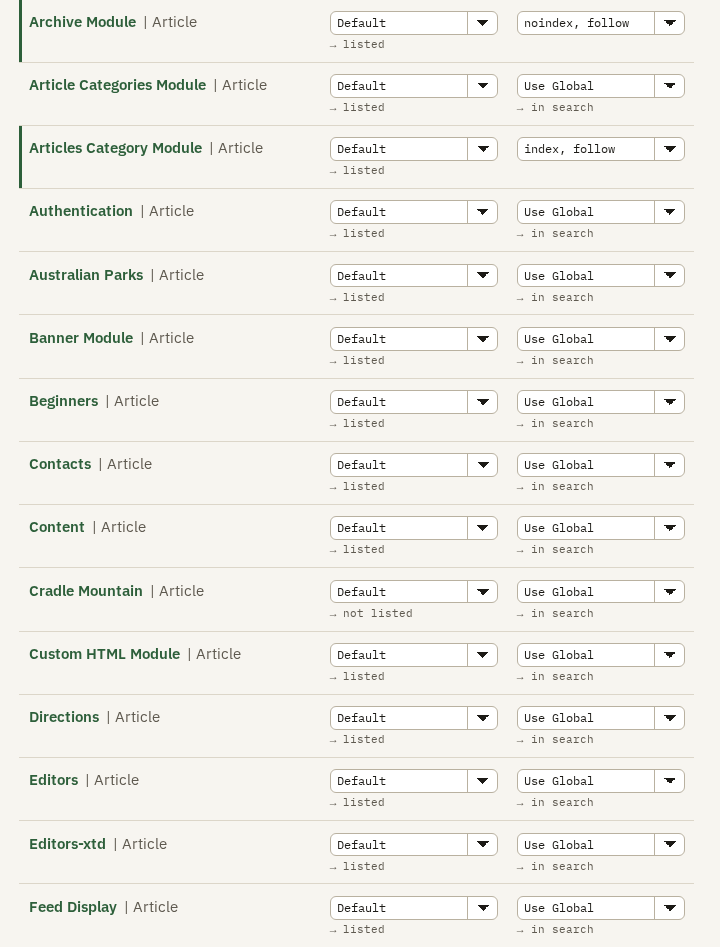
On the first page of the test site's table, two sample articles have answers of their own, and a bar at the left of each row marks them. Archive Module is set to noindex, follow. It now asks search engines to leave it out of their results, and they may still follow its links. Its In sitemap answer is still Default, and still comes to listed. The two columns are separate answers with separate stores. If you want a page out of search and out of the sitemap, set both.
Cradle Mountain, further down, shows → not listed under Default. The sitemap leaves it out, and resting the pointer on the choice says why.
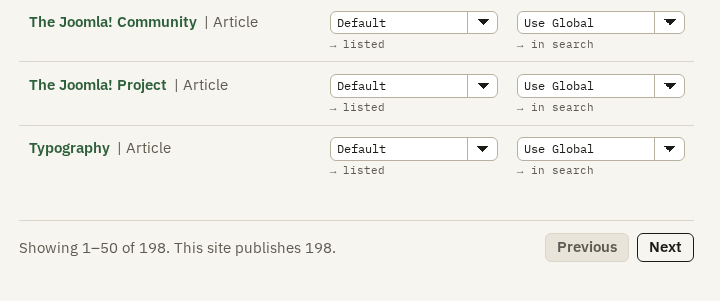
The table shows fifty rows at a time. The line under it says which rows are on screen and how many addresses the site publishes, and Previous and Next turn the page.
Site read
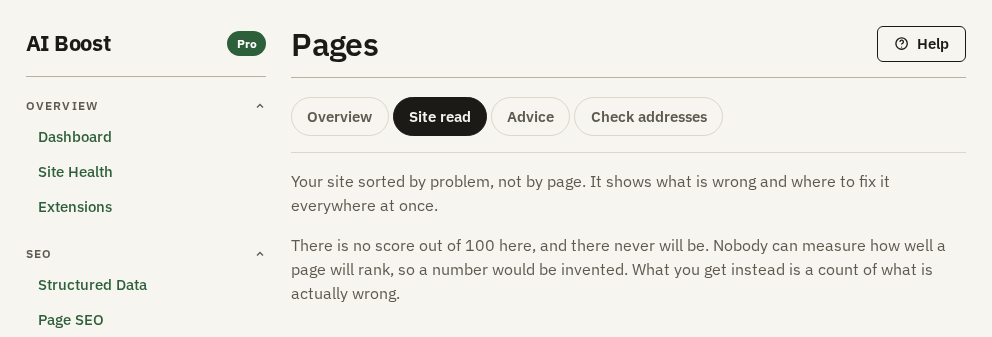
Overview goes page by page. Site read turns the same scan round and goes check by check, counting how many pages fail each one. A single setting often clears a whole row, so this is where to start fixing. Site read runs nothing itself. It shows the last scan from Overview, and before any scan has run it says so and offers Go to Overview. While a scan is running, it shows how far the scan has got.
You get counts, never a mark out of 100.
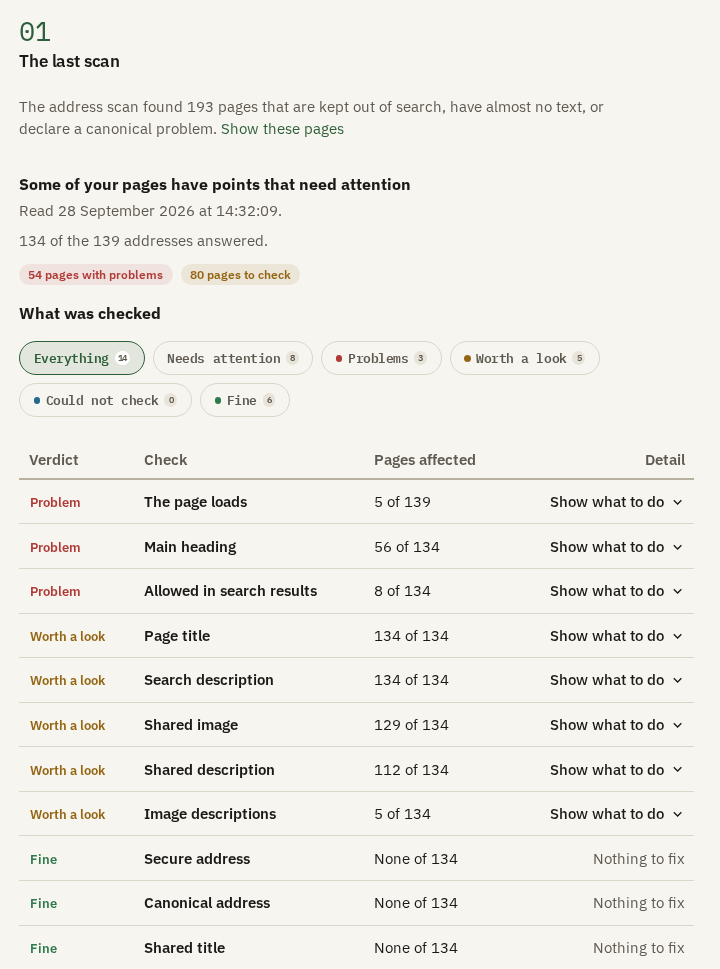
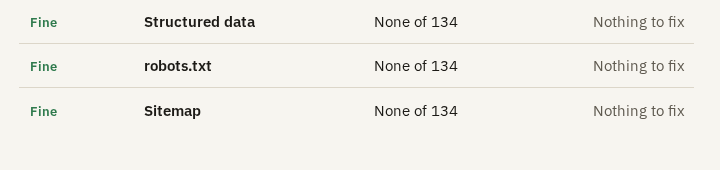
The section The last scan opens with the pages that are kept out of search, have almost no text, or declare a canonical problem. Show these pages opens Overview with the table cut down to them. Then a headline says whether any page needs attention, when the scan was read, and how many of the addresses answered. The badges count pages with problems, pages to check and pages with nothing wrong. A badge with nothing to count is left out. A page counts once, under its worst finding.
What was checked is a table with the columns Verdict, Check, Pages affected and Detail. A verdict is Problem, Worth a look or Fine, or For information when AI Boost could not read your robots.txt or sitemap. The worst rows come first. The chips above it, Everything, Needs attention, Problems, Worth a look, Could not check and Fine, filter the rows.
The test site's scan ran these checks:
| Check | What it looks at |
|---|---|
| The page loads | Whether the address ends on a page or on an error |
| Main heading | Whether the page has one main heading |
| Allowed in search results | Whether the page tells search engines to leave it out |
| Page title | Whether the page has a title, and its length |
| Search description | Whether the page has a meta description, and its length |
| Shared title, Shared description, Shared image | The sharing tags a chat app or social network reads |
| Image descriptions | Images with no description |
| Secure address | Whether the page is served over HTTPS |
| Canonical address | Whether the page names its real address |
| Structured data | Whether the page publishes any |
| robots.txt | Whether the site serves one |
| Sitemap | Whether the site serves one, and whether robots.txt announces it |
Show what to do opens a row. It says what was found, then What to do and Why it matters, and lists up to ten of the pages affected. Where one setting controls the check, Open the setting that controls this opens that setting in a new tab. The page loads lists instead the addresses that ended on an error page, what each step of the way answered, and Edit the menu item or Edit the article where AI Boost can tell which one to fix.
On the test site, Shared image is marked Worth a look on nearly every page, because no default sharing image is set. Opened, the row says to set one on Social Sharing, and its button opens that screen. One setting there clears the whole row.
Advice
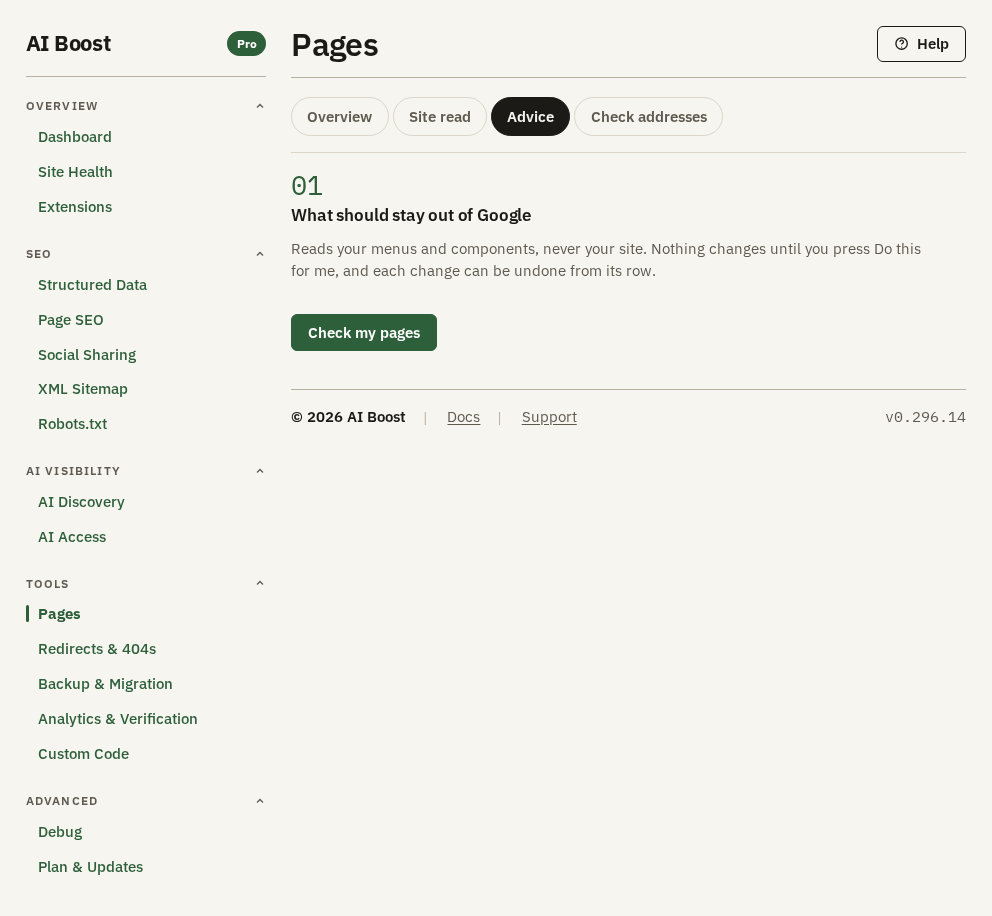
Some pages are there to be used and never found. A search results page changes with every search, a tag page repeats articles your categories already list, and a login form has nothing to read. Advice finds those pages on your site.
Check my pages reads your menu items and the components that are switched on. It opens none of your pages, and it changes nothing. Three badges then count the recommendations, those already done and those still to do.
The first table lists what to keep out of search, under the columns Page or type, Why and What to do. It can hold these rows:
- Search results pages, when Joomla's search is switched on or a menu item opens it.
- Tag pages, when Joomla's tags are switched on or a menu item opens them.
- Each menu item that opens Joomla's login, registration, password reminder, password reset or profile form.
Do this for me applies one row. For Search results pages or Tag pages, it switches on Keep internal search results pages out of search or Keep tag pages out of search on Page SEO, sub-tab Indexing. For a menu item, it sets that page's Indexed answer to noindex, follow, the same answer you could set on Overview. The row then says what was done, read back from your site, and offers an Undo button. Undo switches a setting off again, or puts a menu item back to Use Global and shows what that gives. Open the setting and Open this menu item take you there to do it yourself.
Say the hotel has a menu item that opens Joomla's login form, for staff. Its row explains that a login page is there to be used, and Do this for me sets it to noindex, follow. The page keeps working for staff and asks search engines to leave it out.
A kind of page your site does not have is named in one line under the table, with nothing to decide. A second table lists what to keep in search. It holds your other menu items, such as the pages that show articles, contacts and news feeds, each marked keep in search, 25 rows at most. It is there to show what the advice leaves alone. Print and feed copies of a page are not listed, because AI Boost already points them at the real page.
Check addresses
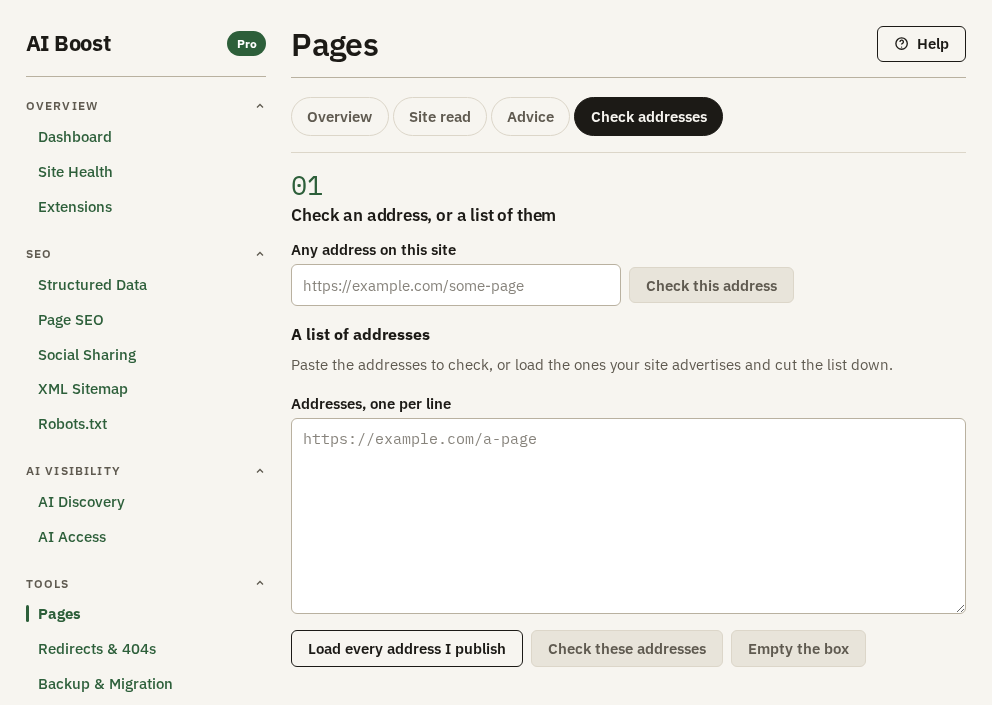
Check addresses reads what one address really publishes. Type it into Any address on this site and press Check this address, or click a title on Overview. It need not be in the table. An address from Google Search Console, from an old newsletter or from a link someone says is dead works too. Your server opens it three times, to follow it, to run the checks and to read what it publishes. Only addresses on your own site are read, and one that leads away stops there.
The result names the address and when it was read, then six panes:
- What is wrong runs the checks from Site read on this one page. When your theme or another extension writes one of the four head tags, it adds a row called Who writes these tags.
- Google draws the title and description as a Google result would, for desktop and for mobile, with their lengths. A page that asks not to be listed gets a warning that it will not appear in Google at all.
- Share draws the Facebook / LinkedIn card and the X / Twitter card from the page's own tags, and says what is missing.
- Address follows the address to where a reader ends up, with every redirect on the way. It says whether the page declares itself out of search, has little text, or names another address as its real one.
- Rich results checks the structured data against the fields Google documents for each kind of rich result. Each is Eligible, Not yet or Not checked, and a Not yet names what is missing.
- Code lists the four tags a search engine reads first, the title, the description, the canonical and the robots tag, under Tag, Value and Emitted by. Then come The block AI Boost adds to this page and all the structured data the page publishes.
Emitted by says AI Boost, Your theme or another extension or Cannot tell. When your theme writes the title, changing the title in AI Boost will not change the page. You decide which of the two should own it.
The Google and Share panes show a close likeness. Google and the social networks draw results their own way and rewrite them when they choose.
Check the test site's article about its garden jazz evenings, https://example.com/park-blog/first-blog-post. Share draws the card with its title, "Garden evenings at Aldwick Lane Hotel". The article has no picture and the site has no default one, so the pane says the page shares with no thumbnail.
A list of addresses
Under the single address, A list of addresses checks many at once. Paste them into Addresses, one per line, or press Load every address I publish to fill the box from your sitemap, or from your menus when the sitemap cannot be read. Cut the list down and press Check these addresses. A line that repeats is read once.
One run reads 50 addresses. The rest stay in the box, so delete the ones you have done and press again. Stop ends a run early, and Empty the box clears the box.
Each address gets one row saying whether it answers normally, sends visitors elsewhere and where to, is broken, gave no answer, or is not an address on this site. The chips All, Fine, Redirects, Broken, No answer and Not this site filter the rows. A list follows each address and reads its answer. For the six panes, check the address on its own.
A list suits a move. Say the hotel moved its rooms page from /old-rooms to /rooms and added a redirect under Redirects & 404s. Paste the old addresses, and each row should say it sends visitors elsewhere, with the new address at the end of its trail.
Check it on your site
After you set a page to noindex, follow or noindex, nofollow on Overview, check that address on Check addresses. Google warns that the page asks not to be listed, and Code shows the robots tag with its new value. View the page's source in a browser and search for name="robots" to see the same tag. If you also set Not listed, open /sitemap.xml on your domain and the address is no longer in it.