

All docs
Getting started
AI Boost for Joomla is one package. It installs the AI Boost screens in your administrator and the plugin that writes into your pages. This page takes you from the download to a site that publishes its structured data, its sitemap and its sharing cards, and shows you how to check each one.
What you need
- Joomla 5.0 or later. Joomla 6 works too.
- PHP 8.1 or later.
- An administrator account that is allowed to install extensions.
Install the package
- Sign in to your account on aiboostnow.com and download the package, a single ZIP file.
- In your Joomla administrator, go to System, then Install, then Extensions.
- On the Upload Package File tab, drop the ZIP onto the upload area, or browse for it.
- Joomla reports that the package installed.
The package switches its own plugin on as it installs, so there is nothing to enable under System, Manage, Plugins. AI Boost now appears as Components, AI Boost.
Activate your licence
Open Plan & Updates, the last entry in AI Boost's sidebar. Copy your key from your account, where the link in your purchase email takes you, paste it into Licence key and press Activate this site.
These features work only on a site that has been activated:
- Markdown copies of your pages, and
/llms-full.txt - FAQ, Event and author structured data
- Every Schema Type other than Organization and LocalBusiness. Until the site is activated, a hotel, a restaurant or any other type is published as Organization or LocalBusiness, whichever it belongs to.
- The image sitemap, the share image, title and description an editor sets for one article or category, Share articles as articles, and og:locale
- On Page SEO, the Canonical URL Map, the Per-page noindex list and the choices of what Google may quote
Everything else in AI Boost works on a site that is not activated. The features above keep working after the licence expires, in the version of AI Boost the site has then. Only updates and support stop. A licence we switch off at our end is a different case. At most once a day, when someone opens AI Boost in the administrator, the site asks our licence server about its licence, and once it hears the licence is off, the features above stop on that site.
Once the site is activated, Joomla has your download key and fetches AI Boost's updates by itself, through its own Updates screen.
What is on and what is off
Almost everything AI Boost can publish is off after installation, so your site looks the same the moment the package goes in. You decide what reaches your pages, one part at a time.
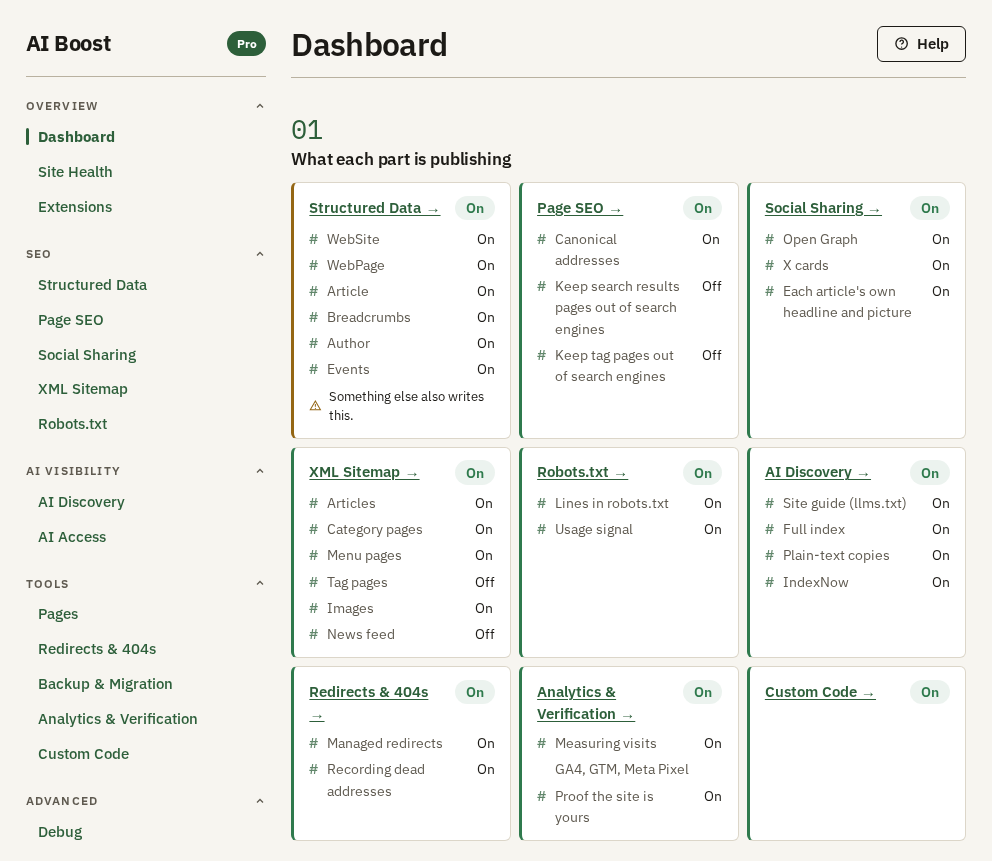
Two cards on the Dashboard read On from the first day, Page SEO and Redirects & 404s, and Dashboard explains what makes a card read On.
The Dashboard shows the whole picture in one place. Each card is one screen, with its switches and whether each is on. A card that carries the line "Another extension that can write this is switched on." means Joomla has another extension switched on that can publish the same thing, and it is worth deciding which one should. The picture shows the test site with every part switched on.
The first four switches
These four give most sites the largest return for the least typing. Every change saves itself a moment after you make it. There is no Save button.
1. Structured data. Open Structured Data, sub-tab General and Business, and switch on Enable structured data output. Choose a Category and then the Schema Type inside it. On the Structured Data sub-tab, the first one, fill in at least the Organisation Name, because without it the business itself is not published. Then add your details under Contact Information and Address on the same sub-tab. Structured Data walks through every box.
2. The sitemap. Open XML Sitemap and switch on Enable XML Sitemap. Your sitemap is then served at /sitemap.xml. XML Sitemap explains what goes in it and how to hand it to Google.
3. Sharing cards. Open Social Sharing and switch on Enable Open Graph tags, then choose a Default OG Image. Social Sharing shows what the card looks like and where each part of it comes from.
4. robots.txt. AI Boost switches on Let AI Boost write into robots.txt by itself when you install or update it, so AI search and answer crawlers can read your site. It adds its own marked section to the end of your file and leaves your lines alone. It writes the file while it serves a page to a visitor, not while you are in the administrator, so open any page of your site once after you install or update. Open Robots.txt to block a crawler, or to switch the whole thing off. Robots.txt covers the AI crawler answers that go into it.
Check what your site now serves
Open your site in a browser, not the administrator.
- Visit
/sitemap.xmlon your domain. You should see a list of your addresses. - Visit
/robots.txt. The file ends with a section that starts# BEGIN AI Boost for Joomla. - View the source of any page and search for
application/ld+json. That block is your structured data.
AI Boost can do the same reading for you. Site Health reads your live site and reports, row by row, what it actually served. Pages lists every address your site publishes, and its Check addresses tab shows one page's Google result, its sharing cards and the code behind them.
If you ever need to stop everything
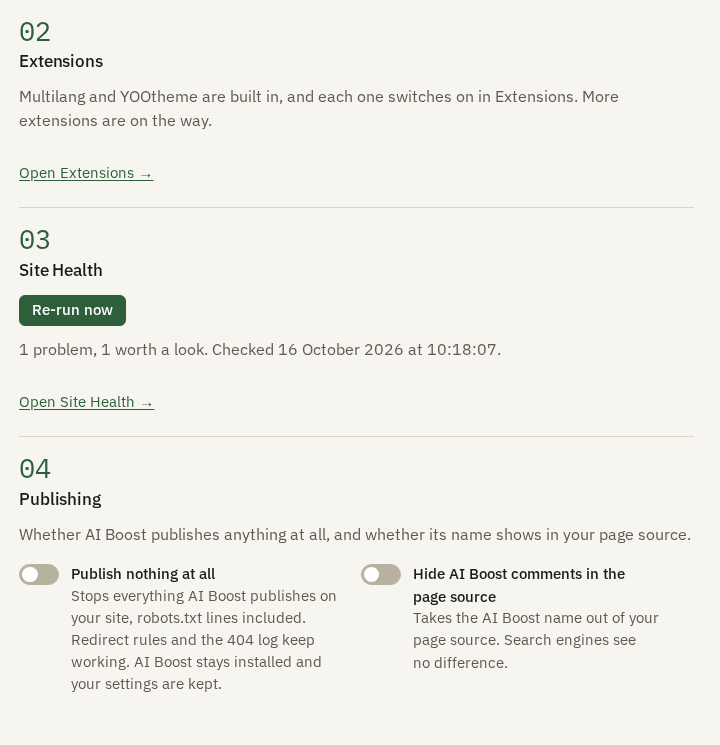
On the Dashboard, in the Publishing section, Publish nothing at all turns off everything AI Boost adds to your site, robots.txt lines included, and keeps every setting. Your redirect rules keep working, and so does the list on Redirects & 404s of the addresses visitors asked for and did not find, because neither is something AI Boost publishes. It asks before it takes effect. Use it on a staging copy, or while you work out whether a problem is ours.
Upgrading and uninstalling
A newer version installs over the old one, through Joomla's Updates screen or by uploading the new package the same way, and your settings stay. From 1.1.0 they stay through an uninstall too. Uninstalling AI Boost lists what an uninstall keeps and what it removes, and the last section of Plan & Updates links to that page.