

All docs
Backup & Migration
Everything you set up in AI Boost lives in your Joomla database. Backup & Migration writes it into one file you can keep, and reads such a file back, on this site or on another. Take a copy before a change you are unsure of and before you uninstall. Use the same file to set up a second site the way the first one is.
It is the third screen under Tools in the sidebar, and it has four numbered sections.
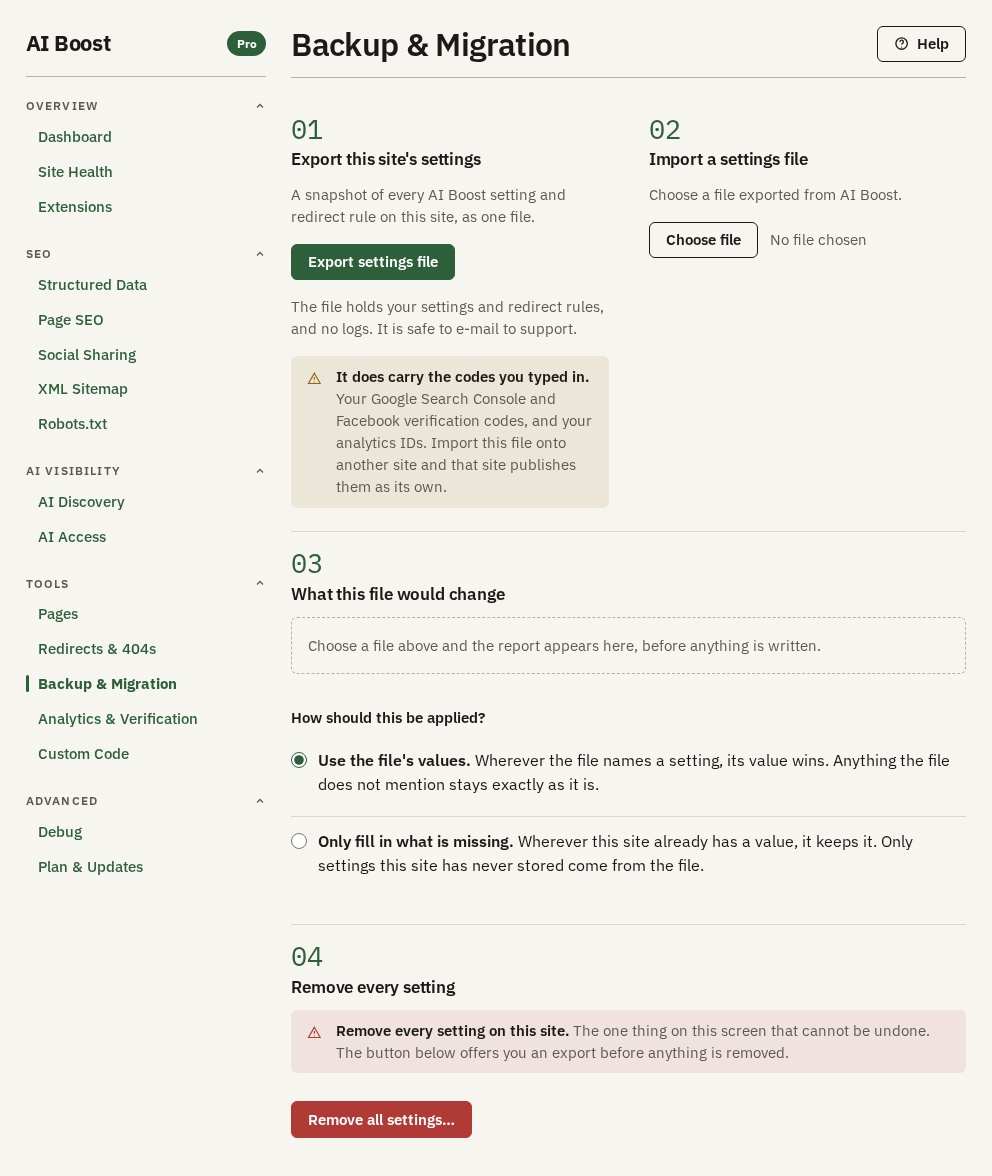
Export this site's settings
Export settings file builds the file on your site and your browser downloads it, named with the day's date, such as aiboost-settings-2026-09-28.json. Nothing is sent anywhere else.
The file holds every setting on every AI Boost screen, including the ones you never changed, and every rule from Redirects & 404s. It holds no licence key, no 404 log and no error log. What your editors typed into AI Boost's fields on articles, categories and user profiles is Joomla content, so it is not in the file either. A page's Indexed answer on Pages is kept with that page in Joomla, so the file does not carry it. Its In sitemap answer is an AI Boost setting, so the file does carry it.
The file does carry what you typed into the settings. That means your verification codes, your analytics IDs and the code in your Custom Code boxes. Keep it where you keep other private files. Import it onto a different site and that site publishes the same codes and reports its visits into your analytics.
Before you uninstall, export first. Uninstalling AI Boost covers the rest of that job.
Import a settings file
Choose file takes a .json file exported from AI Boost. Choosing it writes nothing. AI Boost reads the file, compares it with this site, and shows the result under What this file would change.
AI Boost refuses a file that is not an AI Boost settings file, one that was cut short while downloading, and one that a newer version of AI Boost wrote in a format this version cannot read. The screen says why, and nothing is written. Update AI Boost on this site, then try the newer file again.
What this file would change
The report starts with when the file was taken and which AI Boost version made it, beside the version on this site. Under that, a row of counts sorts every setting the file names:
| Count | What it means |
|---|---|
| new | This site has never stored the setting, and the file sets it to something other than the default |
| changed | This site holds a different value, and the file's value will replace it |
| already the same | Nothing changes |
| kept as they are | This site holds a different value and keeps it, because you chose to fill in only what is missing |
| not recognised | An entry this version does not know, usually one a later version of AI Boost wrote |
| cannot be stored | A value this site will not hold for that setting |
The last three appear only when there is something to count. A second row does the same for redirect rules, matched by the address they redirect from.
The blue line under the counts says how many settings on this site the file does not mention. They keep their values. An import adds and replaces, and never deletes a setting or a redirect rule.
Open Settings this file would change before you import. It lists each changed setting with its value On this site now and In the file. The lists under it name the new settings, the kept ones, the ones the file does not mention, and those it cannot store or does not recognise.
Custom Code follows the same rules as every other setting, with one difference, which is who may change it. With Use the file's values, each Custom Code box that differs takes the file's code, so a box that is empty in the file empties yours. The report warns you when a file would change Custom Code or its switch. Only a Super User can change that code, so for anyone else the report reads Nothing in this file can be applied. and Import these settings stays off. AI Boost refuses the whole file rather than apply part of it.
How should this be applied?
- Use the file's values. Every setting the file names takes the file's value. This is chosen when the screen opens.
- Only fill in what is missing. This site keeps every value it has, and takes from the file only the settings it has never stored.
Changing the choice reads the file again and redraws the report. Import these settings is the only button on the screen that writes an imported file. Cancel drops the file and writes nothing.
Afterwards the heading becomes What this file changed, and a line says how many settings and redirect rules were written. If some could not be stored, the line says how many and they are listed above it. Clear this report empties the section.
A worked example
The Aldwick Lane Hotel built its AI Boost setup on a test copy of its site, then moved it to example.com.
- On the test copy, Export settings file.
- On the live site, Choose file. The live site had AI Boost installed with nothing set up, so every setting the hotel had changed on the test copy arrives as new, and the rest are already the same.
- It kept Use the file's values and pressed Import these settings.
- The test copy's codes came across with everything else, so the hotel opened Analytics & Verification and checked each one against its live accounts.
A sister hotel that wants the same setup imports the same file the same way, then replaces the business details on Structured Data and every code on Analytics & Verification. Until it does, its pages carry the Aldwick Lane Hotel's name, address and verification codes as its own.
Remove every setting
Remove all settings… opens a window that asks you to confirm before anything is removed. Once removed, only a file you exported first brings the settings back.
The window, Remove every AI Boost setting, offers Export settings file first. Take it, because that file is the only way back. It then lists what goes and what stays.
- What goes. Every AI Boost setting, including the switches on Redirects & 404s and Debug and each page's In sitemap answer on Pages, and the last Site Health result. The site then starts over the way a fresh installation does.
- What stays. Your licence, your redirect rules, the Indexed answer you gave each page on Pages, the 404 log, the error log, the history of address checks, and the fields AI Boost added to articles, categories and user profiles. None of your Joomla content is touched.
Type reset-all into the box to switch on Remove all settings, and press it. When it is done, press Reload the admin to see the site as a fresh installation shows it.
Use this when a setup has drifted so far that starting over is quicker than fixing it. It keeps your licence and your redirects, which an uninstall does not.
Check it on your site
After an import, open the Dashboard. Each card shows its screen's switches, so you see at a glance what the file switched on. Then look at your site as a visitor, and check the pages that matter most on Pages, Check addresses.